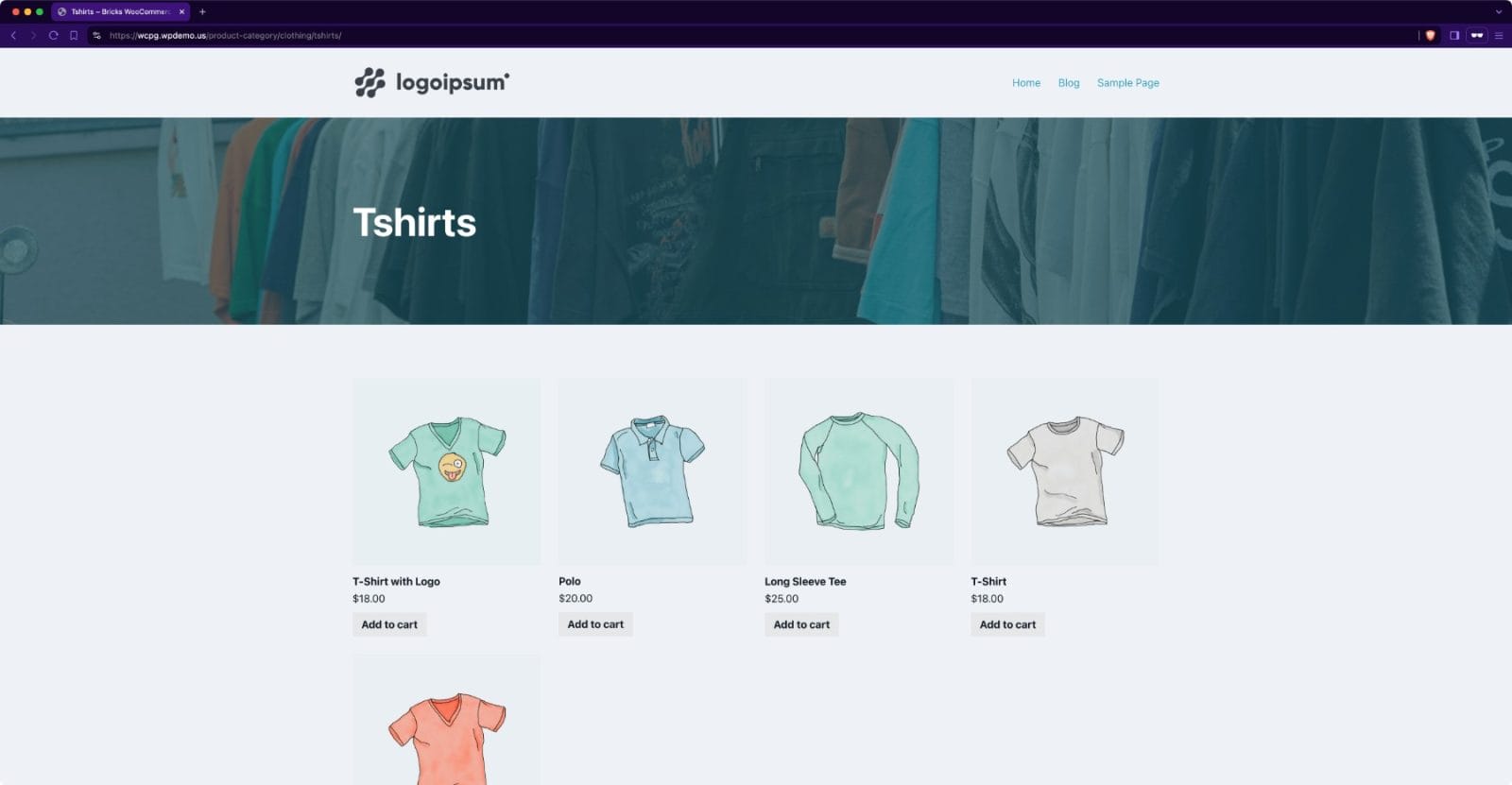
Looking to set up the product category thumbnail image as the background of a Section in Bricks?
Here’s how.
Step 1
Edit your product categories in the WP admin and set images for each.

Step 2
Register a custom function (to be used on WooCommerce term archives) that returns the URL of the product category image.
Add the following in child theme‘s functions.php (w/o the opening PHP tag) or a code snippets plugin:
<?php

function bl_get_wc_category_image_url(): string {
    // Check if WooCommerce is active
    if ( ! function_exists( 'is_woocommerce' ) ) {
        return false;
    }

    // Get the category thumbnail ID
    $thumbnail_id = get_term_meta( get_queried_object_id(), 'thumbnail_id', true );

    // If there's no thumbnail ID, return false
    if ( ! $thumbnail_id ) {
        return false;
    }

    // Get the image URL
    $image_url = wp_get_attachment_url( $thumbnail_id );

    // Return the image URL
    return $image_url;
}
Step 3
Whitelist the bl_get_wc_category_image_url function.
Ex.:
<?php

add_filter( 'bricks/code/echo_function_names', function() {
  return [
    'bl_get_wc_category_image_url'
  ];
} );
You should also add other functions (native or custom) being used in your Bricks instance besides bl_get_wc_category_image_url. This can be checked at Bricks → Settings → Custom code by clicking the Code review button.
More info on whitelisting can be found here.
Step 4
Create a Bricks template for product category archives and edit it with Bricks.


Add a Section and inside its Container, a h1 Heading for showing the product category name.
{term_name}
Select the Section → STYLE → BACKGROUND.
Paste this dynamic data tag:
{echo:bl_get_wc_category_image_url}

You could optionally set a gradient color as the overlay.
