Updated on 26 Oct 2023
This Pro tutorial provides the steps to set up a search template in Bricks with these features:
- “Search results for: <searched term>” above the results. Example.
- Showing a “No search results matching” message when there are no search results.
Step 1
Create a new Bricks template of the type “Search results” called say, “Search Results”.
Click the Settings (gear) icon → TEMPLATE SETTINGS → CONDITIONS → Search results.

Add a Section and inside its Container, a h1 Heading having this text:
Search results for: {url_parameter:s}
Another way of adding a heading that shows the searched term is to instead add the “Post Title” element and enable “Add context” in its settings. This will show something like “Results for: lorem” on the front end.
Below the heading, add a Posts element or if you want more control, the Bricks’ Query Loop feature on any container.
You may want to rename the Section to “Search Results”.
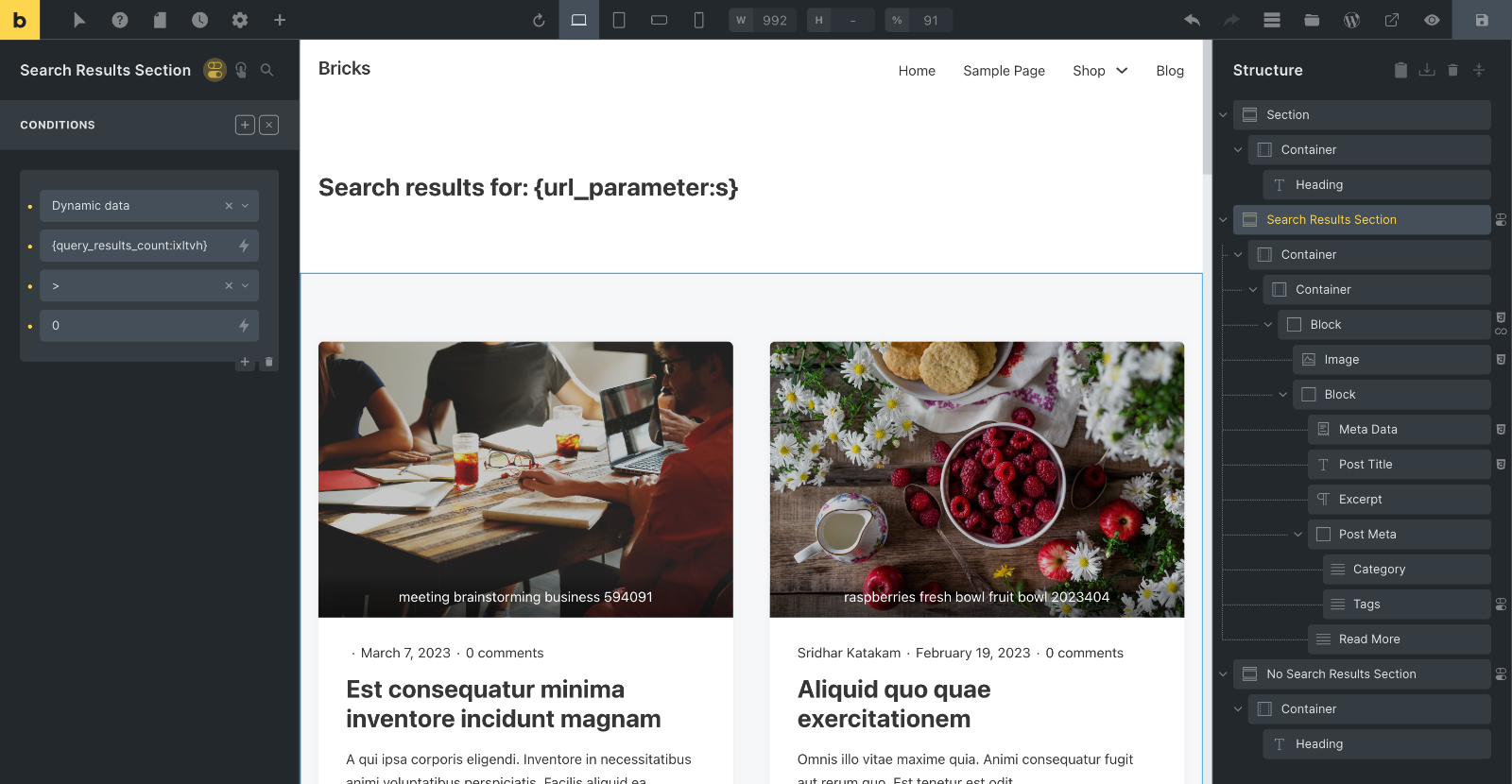
Apply this Dynamic data condition:

{query_results_count:ixltvh}
Replace ixltvh with the Bricks ID of the Posts element or the element on which query loop is enabled.
Add another Section having a Heading/Text that reads something like:
There are no search results for: {url_parameter:s}
Rename this Section to say, “No Search Results” and apply this condition:

Replace ixltvh with the Bricks ID of the Posts element or the element on which query loop is enabled.
Finally, in your site’s header add a Search element and configure it to your liking.
and you are done!