Updated on 15 Apr 2024
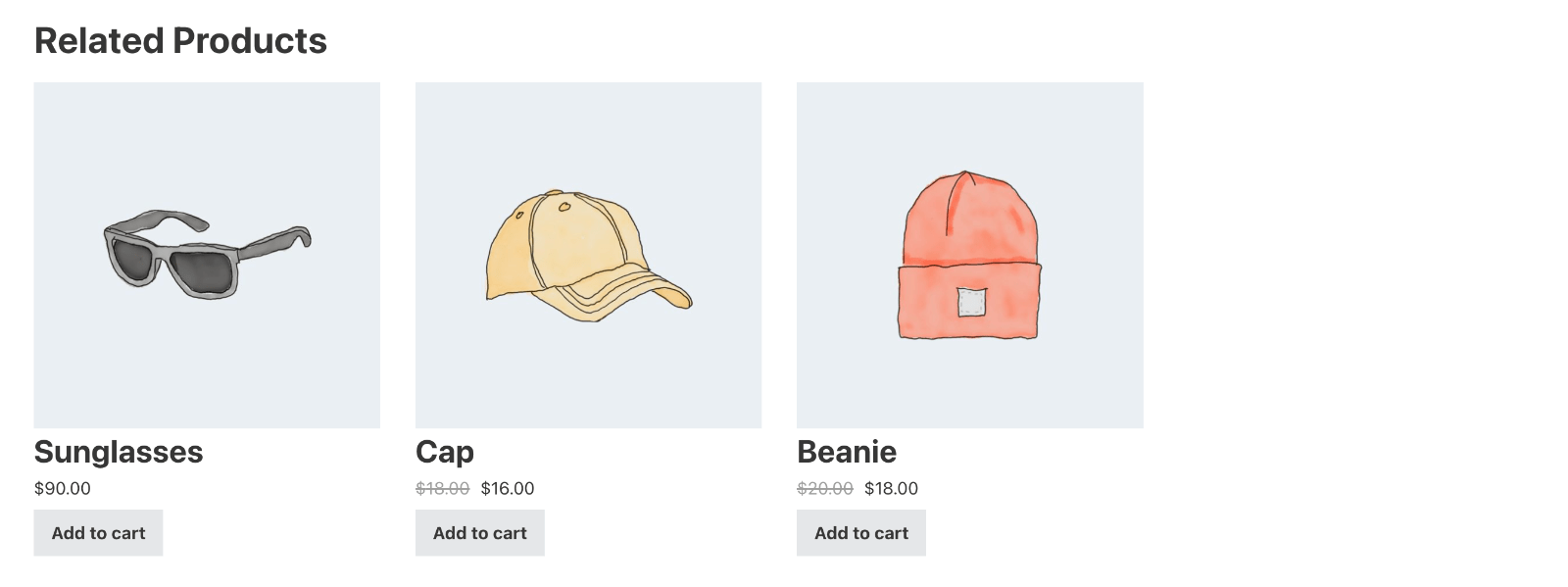
This Pro tutorial provides the steps to output WooCommerce products related by the current product’s categories when viewing single product pages in Bricks.
We are going to ensure that
- the Section gets rendered only if there is at least 1 related product.
- “Related Product” heading or “Related Products” heading is output depending on the number of related products.
Bricks builder comes with a Related Products element. This tutorial is meant for the case when you want to instead build the layout of the related product visually using a Query Loop for more control of what info should appear for each product and in what order.
Step 1
Edit your single WooCommerce product template with Bricks.
Step 2
Copy the following JSON of the fully-built DIV from our test site and paste it in your template.
The structure should look like this:

The PHP in the query editor for the Block should be:
$terms = get_the_terms( get_queried_object_id(), 'product_cat' );

if ( $terms && ! is_wp_error( $terms ) ) {
	$term_ids = wp_list_pluck( $terms, 'term_id' );

	return [
		'post_type' => 'product',
		'posts_per_page' => 4,
		'fields' => 'ids',
		'no_found_rows' => true,
		'tax_query' => [
				[
					'taxonomy' => 'product_cat',
					'field' => 'term_id',
					'terms' => $term_ids,
					'operator' => 'IN',
				],
			],
		'post__not_in' => [ get_queried_object_id() ],
	];
} else {
	return [
		'post_type' => 'product',
		'post__in' => [ 0 ],
	];
}
Apply Dynamic data conditions on the Related Products DIV and the two headings.


{query_results_count:fnldki}
where fnldki is the Bricks ID of the query loop enabled Block.
Check any single product on the front end.