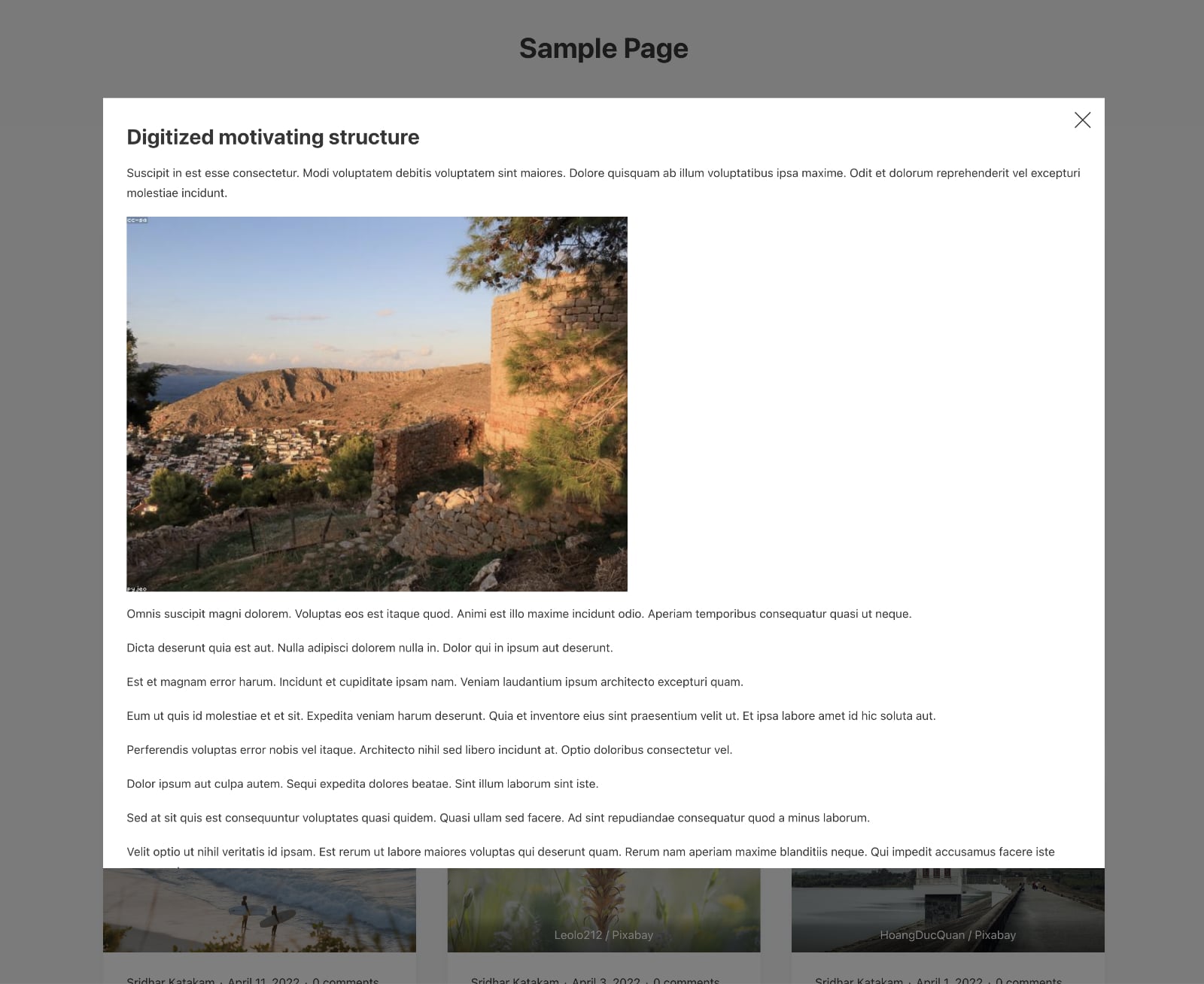
This Pro tutorial provides the steps to show post-specific data (post title and post content) in a popup using Bricks‘ Popup Builder and Interactions features.
Step 1
Go to Bricks → Templates and create a template of the type Popup named say “Popup – Loop Item”.
Edit it.
Settings (gear icon) → TEMPLATE SETTINGS → CONDITIONS: Add “Entire website” condition.
You may want to set a height like 75vh for the popup.

Add a Container and inside that, your desired elements that should appear when a button or Read more link is clicked for each post in the loop.

Close icon settings:


Also, set its cursor to be pointer.
By default, the close icon placement will be near the top right of the browser viewport.
We need to set the actual popup’s position to be relative so that the close icon is at the top right of the popup instead.
Settings (gear icon) → PAGE SETTINGS → CUSTOM CODE → Custom CSS:
.brx-popup-content {
	position: relative;
}
Step 2
Edit an archive template or a static Page in which you want to show a list/grid of posts via query loop with Bricks.
Set up a query loop if you haven’t already. You could find a sample copy-and-paste ready JSON here.
Add a Template element inside the query loop element.

Select the popup template created in the previous step.

Select the Read more link/button and set the URL to #.

Add an interaction to show the popup.

That’s it! Check on the frontend. When the Read more buttons are clicked, the post-specific title and content should appear inside the popup.