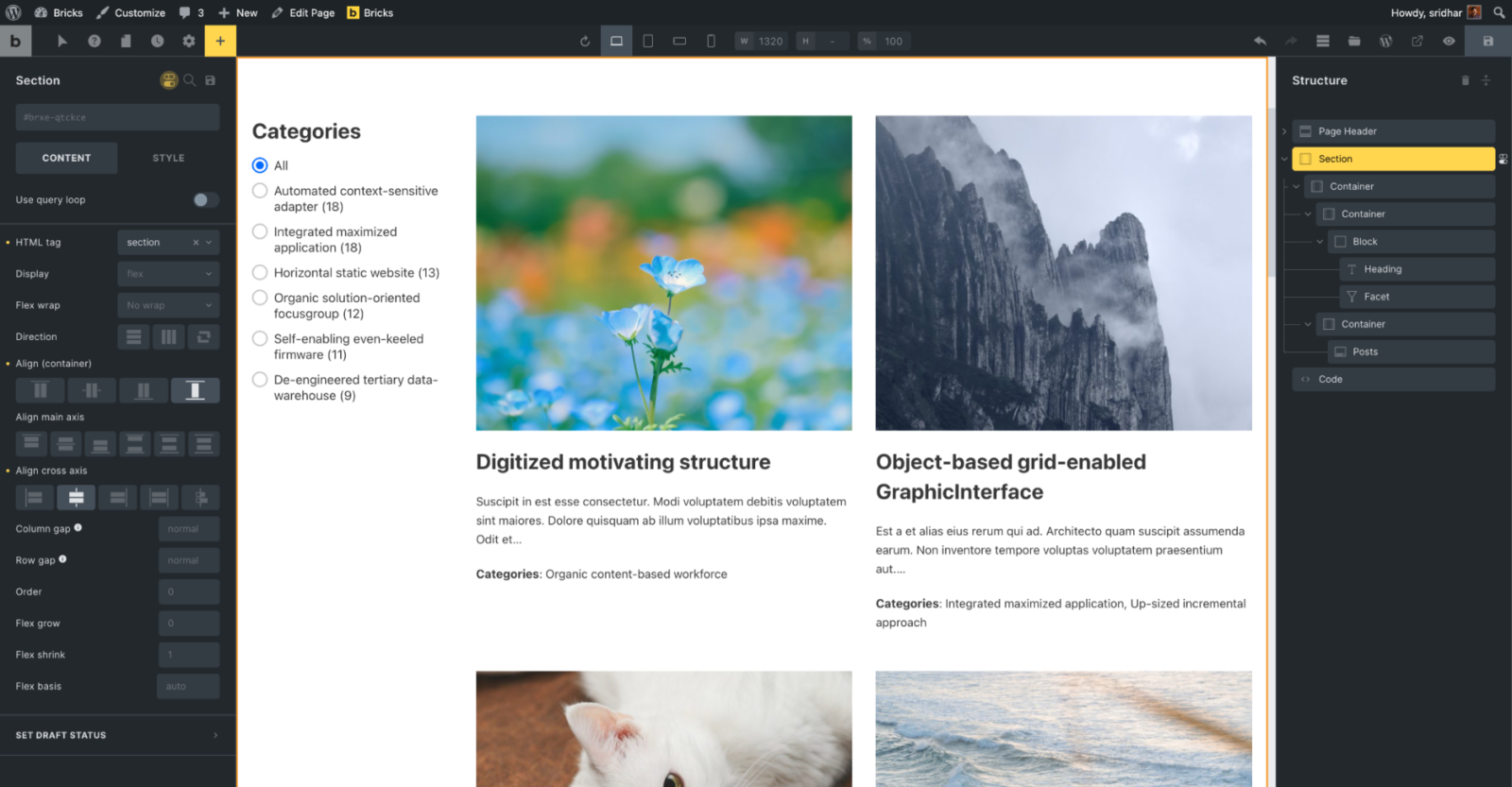
This Pro tutorial provides the steps to move a Block containing a Heading and WP Grid Builder‘s Facet into BricksExtras‘ OffCanvas element for viewports 991px and below in Bricks.
We are going to
- set up an offcanvas having a close button, a heading and a Slide menu using BricksExtras.
- set up a BricksExtras’ Burger Trigger in the header for 991px and below which triggers the offcanvas.
- On the Posts page, add a Categories facet filters using WP Grid Builder at the left and a Posts element at the right.
- add JS to move the filters facet in the DOM into the offcanvas for screen widths 991px and below and back into the left side container 992px and above.
Step 1
Install and activate BricksExtras, WP Grid Builder and its Bricks add-on.
Go to Gridbuilder → All Facets and create a new “Categories” facet.
Action: Filter
Type: Radio
Filter By: Taxonomy → Categories
Enable Burger Trigger, Offcanvas and Slide menu elements in BricksExtras’ settings.
Step 2
Edit your Footer template with Bricks.
Add an Offcanvas element at the root level near the end of your structure.
Add a “Navigation” heading, a close icon and a Slide menu.

Set the close icon’s Link to External URL of #.
Add an attribute named onclick with the value set to event.preventDefault() to ensure that when the icon is clicked, # does not get appended to the end of the URL.
Set Position to absolute with a Top and Right values of say 1em each.
Step 3
Edit your Header template with Bricks.
Add a Burger Trigger below the Nav Menu.
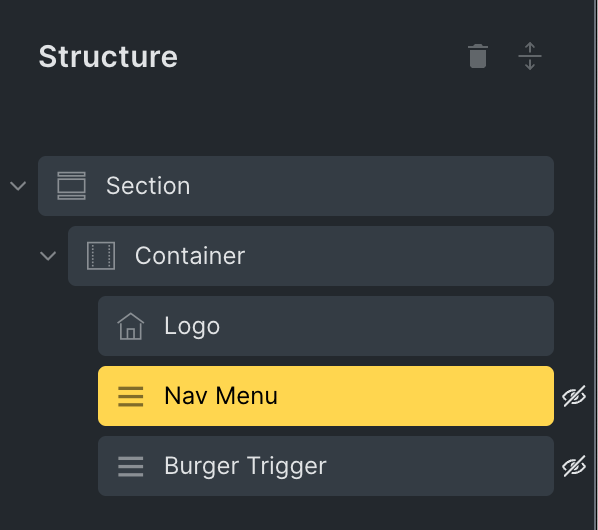
Switch to <= 991px breakpoint and set Nav Menu’s Display to none.
Switch to the Desktop (Base breakpoint) and set Burger Trigger’s Display to none. Switch to <= 991px breakpoint and set the Display to flex.
By now you should have a working responsive menu with the regular nav menu on desktops and hamburger on smaller widths which when tapped shows the menu in the offcanvas.
Step 4
Edit your Posts page with Bricks.
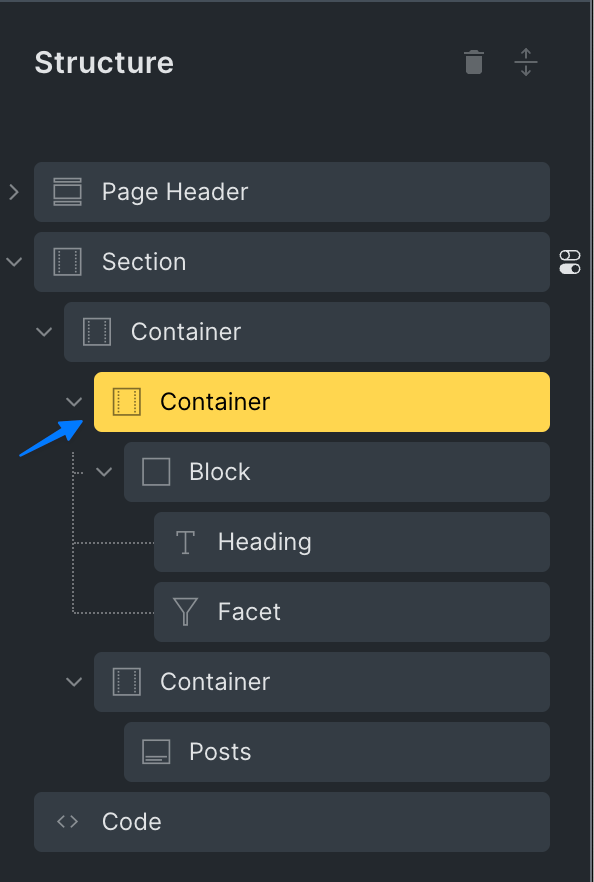
Add a Section having 2 Containers inside (the Section’s Container).
In the 1st Container, add a Block having a “Categories” heading and a Facet.
In the 2nd Container, add a Posts element.

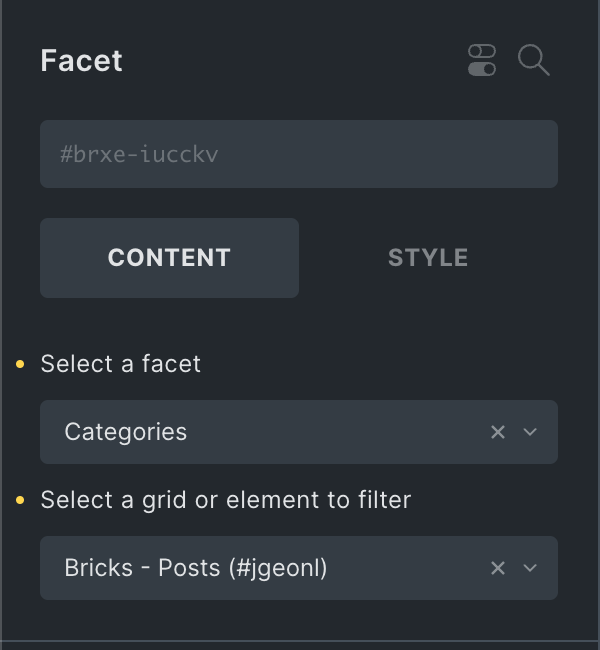
Select the Facet element and select the Categories facet and the Posts element.
Select the Posts element and set Post type to Posts in its Query. This ensures that when one of the filters is selected on the front end and “All” is selected, only the posts appear and not items of all post types in the site.
Add a Code element at the root level at the end of the structure having this code:
<script>
function checkForWindowResize() {
	clearTimeout(window.resizedFinished);

	window.resizedFinished = setTimeout(function(){
		if (window.innerWidth < 992) {
			// move the filters inside the offcanvas
			document.querySelector('#x-offcanvas_jzusmb').appendChild(document.getElementById('brxe-lzkbai'));
		} else {
			// otherwise restore the filters
			document.getElementById('brxe-ixusyy').prepend(document.getElementById('brxe-lzkbai'));
		}
	}, 250);
}

document.addEventListener('DOMContentLoaded', checkForWindowResize);
window.addEventListener('resize', checkForWindowResize);
</script>
Replace x-offcanvas_jzusmb with the ID of your offcanvas element. This can be obtained using the browser inspector from frontend. Remember that you can reduce the viewport width, click the hamburger menu icon and open the offcanvas to inspect it with DevTools.

Replace brxe-lzkbai with the ID of your Block having the “Categories” heading and the Facet.
Replace brxe-ixusyy with the ID of your 1st (left) Container which has the Block.
Toggle Execute code on.
Reference
https://wpdevdesign.com/how-to-move-an-element-into-offcanvas-on-smaller-viewports-in-oxygen/