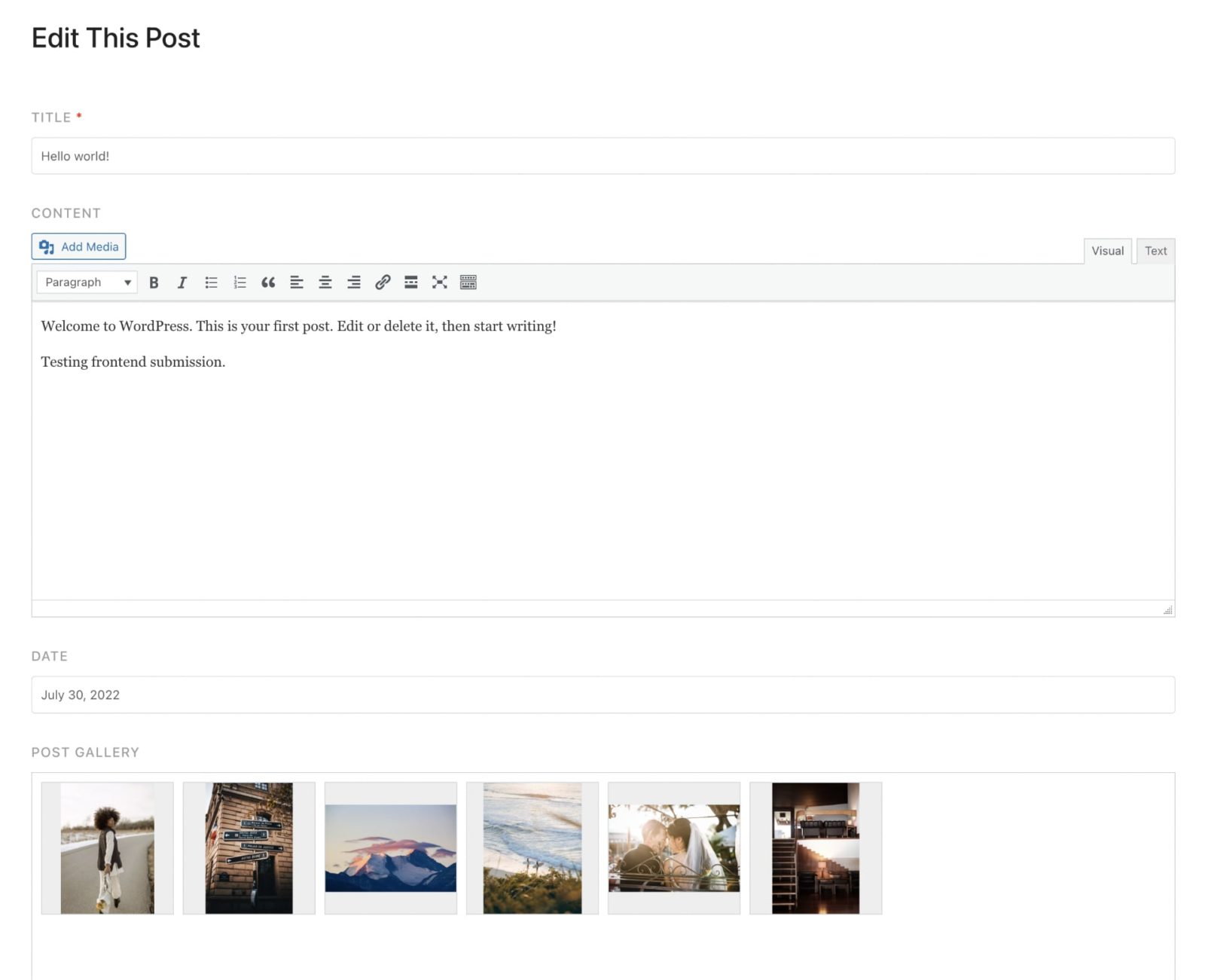
This Pro tutorial provides the steps to show a form on single posts on the front end for admins and the post author using which the post title, WordPress content and custom field values can be updated in Bricks.
We are going to
- call the
acf_formandacf_form_headfunctions. - use the bricks/element/render filter to output the specified Section only if the currently logged-in user is admin or is the author of the current Post/Page/CPT item.
Step 1
Ensure that Code Execution is enabled for admin user role at Bricks → Settings → Builder access.
Edit the Template that applies to single items of your post type – posts in this example with Bricks.
Add a Section.
STYLE → CSS → CSS ID: acf-form-section
Add a Heading inside this Section’s Container and set its text to “Edit this post”.
Add a Code element below it having:
<?php

// If ACF is not active, abort.
if ( ! class_exists( 'ACF' ) ) {
  return;
}

// Call acf_form() function.
if ( current_user_can( 'manage_options' ) || get_the_author_meta( 'ID' ) === get_current_user_id() ) { // if the current user is an admin or is the author of the current post
	acf_form( array(
		'post_title' => true, // Whether or not to show the post title text field. Defaults to false.

		'post_content' => true, // Whether or not to show the post content editor field. Defaults to false.

		// 'submit_value' => __( "Update", 'acf' ),

		// 'updated_message' => __( "Post updated", 'acf' ),

    'html_submit_button' => '<input type="submit" class="acf-button bricks-button bricks-background-primary" value="%s" />',
	));
}

?>
Toggle “Execute code” on.
Press the Sign code button.
Save the Template.
Step 2
Add the following in child theme’s functions.php or a code snippets plugin:
// Register the necessary assets (CSS/JS) for ACF Form, process the saved data, and redirect the url.
add_action( 'wp_head', function() {
	// if ACF is not active, abort
	if ( ! class_exists( 'ACF' ) ) {
		return;
	}

	// ensure the global $post variable is in scope
	global $post;

	// Call acf_form_head() function
	if ( is_singular() && ( current_user_can( 'manage_options' ) || $post->post_author == get_current_user_id() ) ) {
		acf_form_head();
	}
}, 1);

// Output the specified Section only if the currently logged-in user is admin or is the author of the current Post/Page/CPT item.
add_filter( 'bricks/element/render', function( $render, $element ) {
	// get the element HTML ID
	$html_id = ! empty( $element->attributes['_root']['id'] ) ? $element->attributes['_root']['id'] : false;

	// render the specified element if the currently logged-in user is admin or is the author of the current Post/Page/CPT item
	if ( $html_id === 'acf-form-section' ) {
		// if ACF is not active or this is not a singular page, do not render the element
		if ( ! class_exists( 'ACF' ) || ! is_singular() ) {
			return false;
		}

		global $post;

		return current_user_can( 'manage_options' ) || $post->post_author == get_current_user_id();
	}

	return $render;
}, 10, 2 );
Step 3
[Option] Add the following CSS below the PHP in the Code element from Step 1 to improve the appearance of the ACF form:
.acf-form .acf-fields>.acf-field {
	border-top: none;
}

.acf-form .acf-fields>.acf-field {
	padding-left: 0;
	padding-right: 0;
}

.acf-field .acf-label label {
	font-weight: 500;
	letter-spacing: 1px;
	text-transform: uppercase;
}

.acf-form .acf-field input[type="text"] {
	padding: 10px;
	border-radius: 4px;
}

#acf-form-section #message {
	margin-bottom: 10px;
}

#acf-form-section .updated {
	background-color: #DFF0D8;
	border: 1px solid #DFF0D8;
	border-radius: 4px;
	color: #468847;
	padding: 10px 15px;
}

#acf-form-section #message p:last-child {
	margin: 0;
}

/* For "Add to gallery" button when a Gallery-type of field is shown */
.acf-field .acf-button.button {
	background-color: rgba(0,0,0,0.05);
	border: 1px solid #ccc;
	padding: 6px 20px;
}
#acf-form-section .acf-gallery .acf-gallery-toolbar .acf-hl li {
	line-height: 2;
}
Press Save.