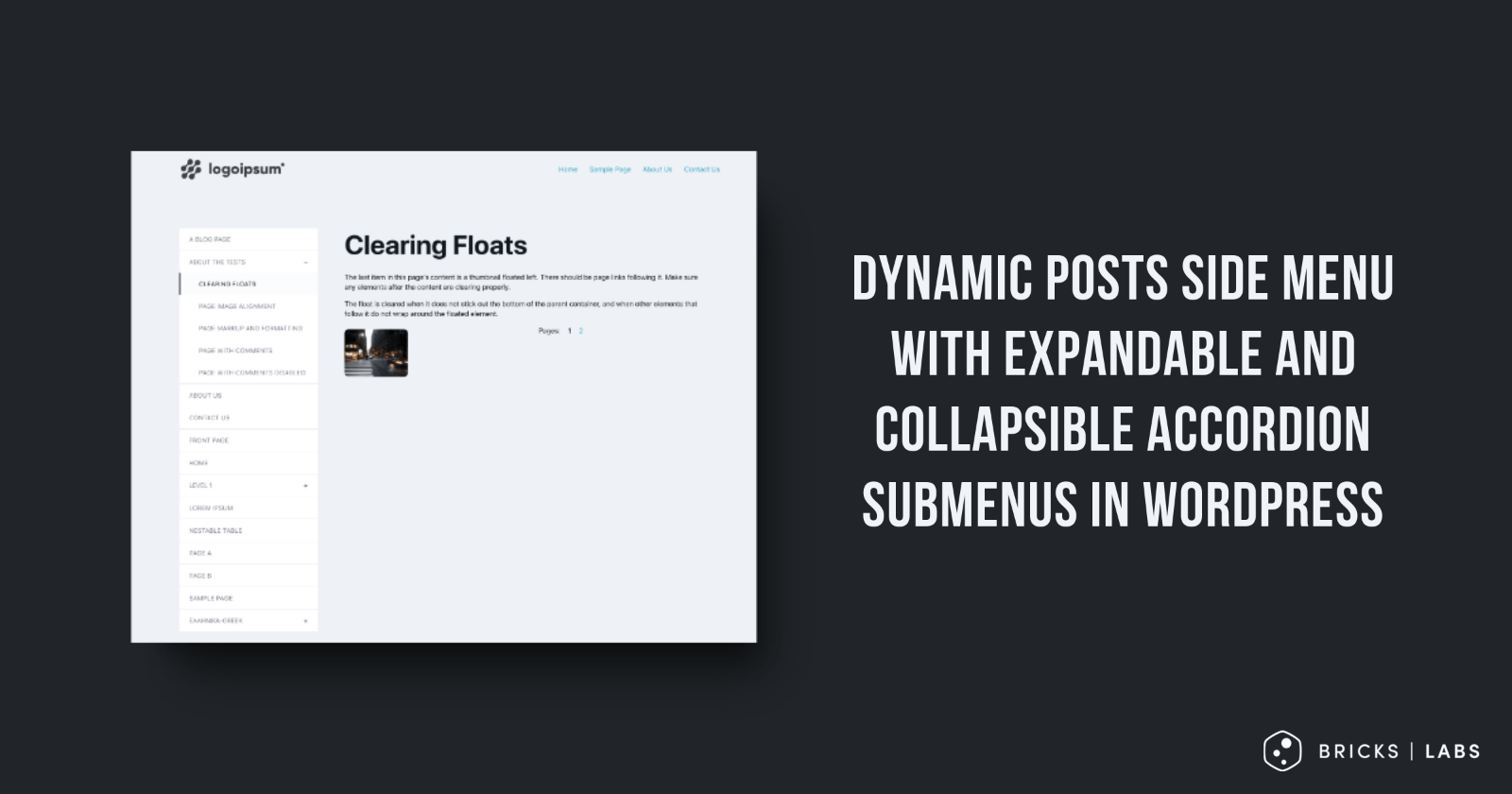
This Pro tutorial provides the steps to show all the posts of a specified post type as menu items with accordion functionality for submenus.
This is especially useful for Pages and hierarchical CPTs that have parent > child posts.

While Bricks was used whilst developing the solution, this technique can be implemented in any WordPress site.
Step 1
Add the following in child theme‘s functions.php (w/o the opening PHP tag) or a code snippets plugin:
<?php

/**
 * Outputs a side menu with posts from a specific post type.
 *
 * @param string $post_type The post type to display.
 * @return void
 */
function bl_output_side_menu( string $post_type ): void {
    // Set up query arguments
    $args = [
        'post_type'      => $post_type,
        'posts_per_page' => -1,
        'orderby'        => 'title',
        'order'          => 'ASC',
        'post_parent'    => 0,
    ];

    // Create a new WP_Query instance
    $query = new WP_Query( $args );

    // Check if there are any posts
    if ( $query->have_posts() ) {
        // Start the navigation markup
        echo '<nav class="side-menu" aria-label="' . esc_attr( $post_type ) . ' navigation">';
        echo '<ul>';

        // Loop through the posts
        while ( $query->have_posts() ) {
            $query->the_post();
            bl_output_menu_item( get_the_ID(), $post_type );
        }

        // Close the navigation markup
        echo '</ul>';
        echo '</nav>';
    }

    // Reset the global post data
    wp_reset_postdata();
}

/**
 * Outputs a single menu item and its children.
 *
 * @param int    $post_id   The ID of the post.
 * @param string $post_type The post type.
 * @return bool Whether this item or any of its children is the current post.
 */
function bl_output_menu_item( int $post_id, string $post_type ): bool {
    // Get child posts
    $children = get_children( [
        'post_parent' => $post_id,
        'post_type'   => $post_type,
        'orderby'     => 'title',
        'order'       => 'ASC',
    ] );

    $has_children = ! empty( $children );
    $current_post_id = get_queried_object_id();
    $is_current = ( $current_post_id === $post_id );

    // Set up CSS classes for the menu item
    $classes = [ 'menu-item' ];
    if ( $is_current ) {
        $classes[] = 'current';
    }
    if ( $has_children ) {
        $classes[] = 'has-children';
    }

    $is_current_or_ancestor = $is_current;

    // Start the menu item markup
    echo '<li class="' . esc_attr( implode( ' ', $classes ) ) . '">';

    // Output different markup based on whether the item has children or is current
    if ( $has_children ) {
        $expanded = 'false';
        echo '<button aria-expanded="' . $expanded . '" class="toggle-submenu">';
        echo '<span class="screen-reader-text">Toggle submenu for </span>';
        echo esc_html( get_the_title( $post_id ) );
        echo '<span class="toggle-icon" aria-hidden="true">+</span>';
        echo '</button>';
    } elseif ( $is_current ) {
        echo '<span class="current-item">' . esc_html( get_the_title( $post_id ) ) . '</span>';
    } else {
        echo '<a href="' . esc_url( get_permalink( $post_id ) ) . '" class="menu-link">';
        echo esc_html( get_the_title( $post_id ) );
        echo '</a>';
    }

    // If the item has children, output the submenu
    if ( $has_children ) {
        echo '<ul class="submenu" hidden>';
        foreach ( $children as $child ) {
            $child_is_current = bl_output_menu_item( $child->ID, $post_type );
            if ( $child_is_current ) {
                $is_current_or_ancestor = true;
            }
        }
        echo '</ul>';
    }

    // If the item is current or an ancestor and has children, add JavaScript to expand the submenu
    if ( $is_current_or_ancestor && $has_children ) {
        echo '<script>
            document.currentScript.previousElementSibling.hidden = false;
            document.currentScript.previousElementSibling.previousElementSibling.setAttribute("aria-expanded", "true");
            document.currentScript.previousElementSibling.previousElementSibling.querySelector(".toggle-icon").textContent = "–";
        </script>';
    }

    // Close the menu item markup
    echo '</li>';

    return $is_current_or_ancestor;
}
Step 2
Add this in child theme’s style.css or in your single template:
.side-menu {
    text-transform: uppercase;
    letter-spacing: 0.02em;
    box-shadow: 0 0 5px #eaeaeb;
}

.side-menu ul {
    margin: 0;
    padding-left: 0;
    list-style-type: none;
}

.side-menu .submenu {
    display: none;
    width: 100%;
    background-color: #fff;
}

.side-menu .toggle-submenu[aria-expanded="true"] + .submenu {
    display: block;
}

.side-menu .menu-item {
    font-size: var(--text-s);
    line-height: 1;
    background-color: #fff;
    border-bottom: 1px solid #eaeaeb;
}

.side-menu > ul > .menu-item:last-child {
    border-bottom: none;
}

.side-menu .menu-link,
.side-menu .current-item,
.side-menu .toggle-submenu {
    display: block;
    width: 100%;
    padding: 20px 25px;
    color: #242832;
    opacity: 0.6;
}

.side-menu .toggle-submenu {
    display: flex;
    justify-content: space-between;
    align-items: center;
    text-align: left;
    line-height: 1;
    background: none;
    border: none;
    cursor: pointer;
    text-transform: inherit;
}

.side-menu .toggle-icon {
    margin-left: auto;
    font-weight: 700;
}

.side-menu .menu-link:hover,
.side-menu .toggle-submenu:hover {
    opacity: 1;
}

.side-menu .current > .menu-link,
.side-menu .current > .current-item,
.side-menu .current > .toggle-submenu {
    padding-left: 22px;
    opacity: 1;
    border-left: 3px solid black;
}

.side-menu .current-item {
    background-color: #fbfcfc;
}

.side-menu .submenu .menu-item {
    border-bottom: none;
}

.side-menu .submenu .menu-link,
.side-menu .submenu .toggle-submenu {
    padding-left: 50px;
}

.side-menu .submenu .current-item {
    padding-left: 47px;
}

.side-menu .submenu .submenu .menu-link,
.side-menu .submenu .toggle-submenu + .submenu .current-item {
    padding-left: 74px;
}
Step 3
Enqueue this JS to load on your single CPT pages or if you are using Bricks, paste this at Settings → Page Settings → Custom Code → Body (footer) scripts:
<script>
document.addEventListener('DOMContentLoaded', function() {
    const toggleButtons = document.querySelectorAll('.side-menu .toggle-submenu');

    toggleButtons.forEach(button => {
        button.addEventListener('click', function() {
            const expanded = this.getAttribute('aria-expanded') === 'true' || false;
            this.setAttribute('aria-expanded', !expanded);

            const submenu = this.nextElementSibling;
            submenu.hidden = expanded;

            const icon = this.querySelector('.toggle-icon');
            icon.textContent = expanded ? '+' : '–';
        });
    });
});
</script>
Step 4
Add this code in your single template:
<?php bl_output_side_menu( 'page' ); ?>Replace page with your desired post type name.