Updated on 9 Sep 2024
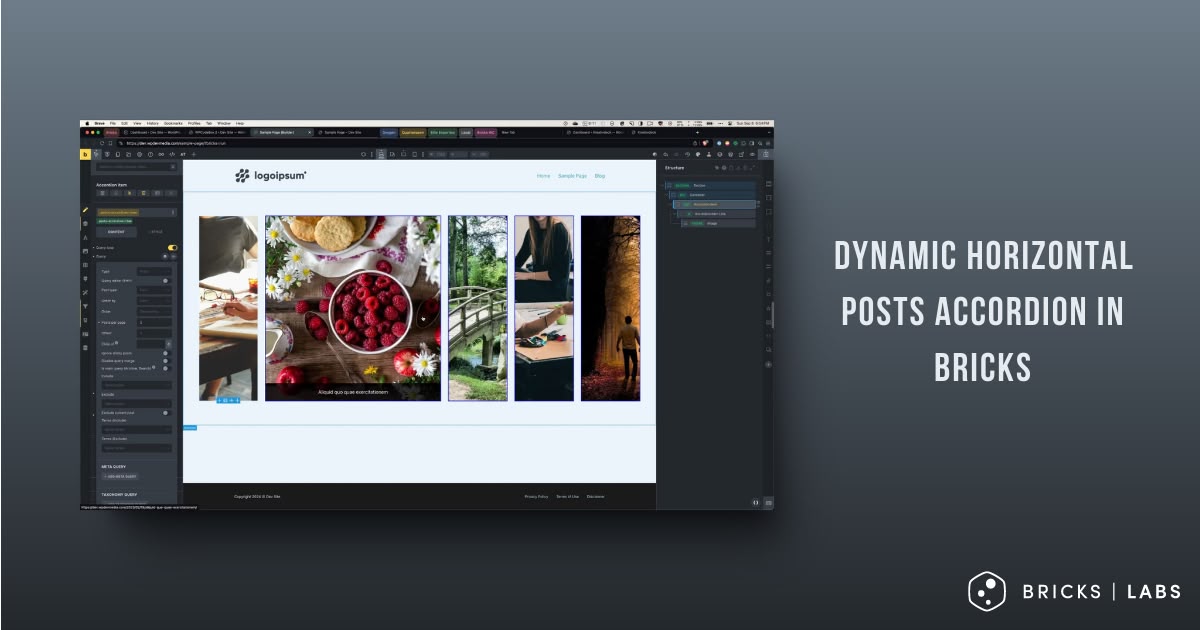
This Pro tutorial provides the steps to set up a horizontal accordion of featured images of posts output by a Bricks query loop so that each image expands smoothly, making the others shrink as they are hovered.
We shall also have the post titles appear as caption and slide in up from the bottom when hovered with the entire accordion item linking to the corresponding single post’s permalink.
Coming to responsiveness, at 992px and below breakpoint we shall reduce the height of the images so they don’t appear too vertically stretched. At this breakpoint, the device is likely a tablet and there won’t be any hover action, so tapping the images would briefly show the caption (post title) and take the user to the corresponding single post.
At 768px and below, we shall make the accordion items (images) appear one below the other with the post title captions showing up.

Step 1
Register a custom image size for the vertical images in our accordion.
Add the following in child theme‘s functions.php (w/o the opening PHP tag) or a code snippets plugin:
<?php

add_image_size( 'horizontal-accordion-item', 1000, 1563, true );

add_filter( 'image_size_names_choose', function ( $sizes ) {
    return array_merge( $sizes, [
        'horizontal-accordion-item' => 'Horizontal Accordion Item',
    ] );
} );
If your posts already have featured images before adding this code, regenerate thumbnails.
Step 2
Edit your Post/Template with Bricks.
Copy this JSON (of the fully-built Section) and paste.
Note: uses certain classes from ACSS.
Ensure the size is set to “Horizontal Accordion Item” for the Image element.
Check the front end to see how it is working.
Select each element and observe its properties/custom CSS (where applicable) to see how it is put together and make any necessary changes.
If you want to show posts of a different post type other than post, edit the query and select your post type.
Step 3
Click on settings (gear icon) → PAGE SETTINGS → CUSTOM CODE and paste this in Body (footer) scripts:
<script>
document.addEventListener('DOMContentLoaded', function() {
    document.querySelectorAll('.posts-accordion-item__link').forEach(item => {
        item.setAttribute('aria-expanded', 'false'); // Set initial state

        item.addEventListener('focus', () => {
            item.setAttribute('aria-expanded', 'true');
        });

        item.addEventListener('blur', () => {
            item.setAttribute('aria-expanded', 'false');
        });

        // Optional: Handle mouse interactions as well
        item.addEventListener('mouseenter', () => {
            item.setAttribute('aria-expanded', 'true');
        });

        item.addEventListener('mouseleave', () => {
            item.setAttribute('aria-expanded', 'false');
        });
    });

    // Additional accessibility feature: Escape key to collapse expanded item
    document.addEventListener('keydown', function(e) {
        if (e.key === 'Escape') {
            document.querySelectorAll('.posts-accordion-item__link[aria-expanded="true"]').forEach(item => {
                item.setAttribute('aria-expanded', 'false');
                item.blur(); // Remove focus
            });
        }
    });
});
</script>
This script does the following:
- Waits for the DOM to be fully loaded before executing.
- Sets the initial
aria-expandedstate tofalsefor all accordion items. - Adds event listeners for
focus,blur,mouseenter, andmouseleaveevents to update thearia-expandedattribute appropriately. - Adds a global event listener for the ‘Escape’ key to collapse any expanded item and remove focus, providing an easy way for keyboard users to exit the expanded state.