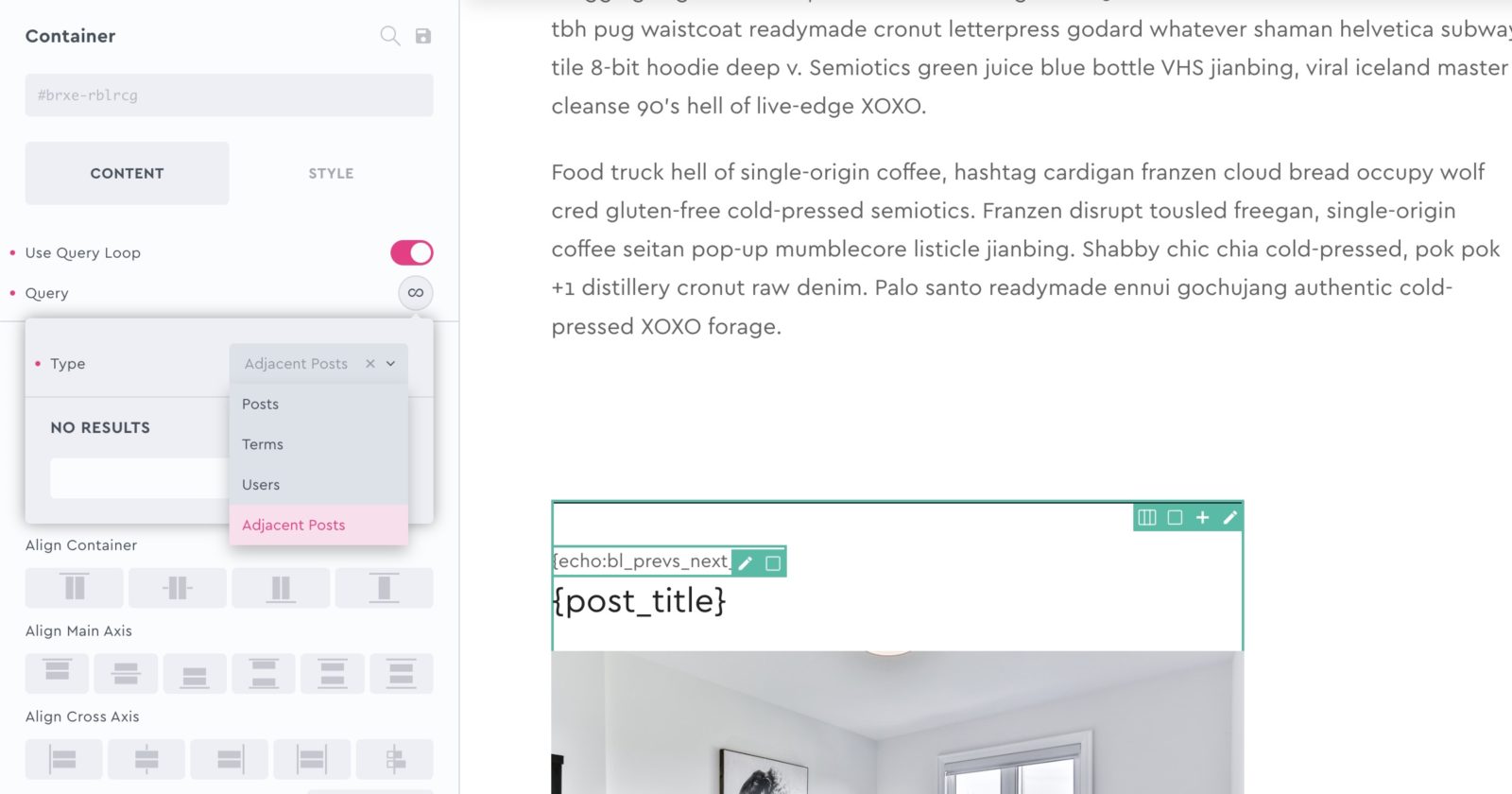
Following on from our tutorial on Adding Custom WP_Query Loops in Bricks, in this pro tutorial we’ll walk through the process of using those same Bricks’ filters to allow us to build custom adjacent posts ( or prev/next posts ) for use on a single post template.
We can then set up this query on the container element, meaning we can then build the layout how we like by placing elements inside and using any dynamic data from those posts. This gives us much more flexibility than using the native ‘post navigation’ element.
Adding the Adjacent Post Query
This code would need to be added outside of the builder, either inside your child theme’s functions.php file or a code snippet manager such as WPCodeBox.
If we refer back to the other tutorial, we see that most of the code is the same. We’re just adding a new name, ‘adjacent posts’ and just the arguments for the WP_Query to make sure only the adjacent posts are fetched.
/* Add new adjacent type control to query loop options */
add_filter( 'bricks/setup/control_options', 'bl_setup_query_controls');
function bl_setup_query_controls( $control_options ) {

    /* Adding a new option in the dropdown */
    $control_options['queryTypes']['adjacent_posts'] = esc_html__( 'Adjacent Posts' );

    return $control_options;

};

/* Run new query if option selected */
add_filter( 'bricks/query/run', 'bl_maybe_run_new_query', 10, 2);
function bl_maybe_run_new_query( $results, $query_obj ) {

    if ( $query_obj->object_type !== 'adjacent_posts' ) {
	    return $results;
    }

    /* If option is selected, run our new query */
    if ( $query_obj->object_type === 'adjacent_posts' ) {
        $results = run_new_query();
    }

    return $results;

};


/* Setup post data for posts */
add_filter( 'bricks/query/loop_object', 'bl_setup_post_data', 10, 3);
function bl_setup_post_data( $loop_object, $loop_key, $query_obj ) {

    if ( $query_obj->object_type !== 'adjacent_posts' ) {
	    return $loop_object;
    }

     global $post;
     $post = get_post( $loop_object );
     setup_postdata( $post );

     return $loop_object;

};


/* Return results from our custom WP Query arguments */
function run_new_query() {

    $prev_post = get_previous_post();
    $next_post = get_next_post();

    $prev_post_id = $prev_post ? $prev_post->ID : '';
    $next_post_id = $next_post ? $next_post->ID : '';

    $args = [
        'post_type' => 'post',
        'posts_per_page' => '2',
		'post__in' => [
			$prev_post_id,
			$next_post_id
		],
		'orderby' => 'post__in',
    ];

    $posts_query = new WP_Query( $args );

    return $posts_query->posts;

};
Going through the four WP_Query arguments briefly..
First, we’re making sure only the post type ‘post’ is being used. Then there’s a maximum of two posts per page. And then the ‘posts__in’ is for setting up which posts are allowed to be included, by their IDs. The posts being allowed are just those returned from the handy WordPress functions the ‘get_previous_post()’ and ‘get_next_post()’, which will always give us the posts we need.
Adding content in Bricks
Now we have our new adjacent posts option, we can select this on a container element in Bricks. And then add in post title, featured image etc.. using the dynamic data options (exactly as you would when creating an archive page). To link to the post, use ‘post link’ from the dynamic data on your link.

Adding Previous / Next Labels
It’s common to need a different label to show in each of the posts, to explain which is the previous post and which is the next post. For this, we’d need to create a custom function, so the text can change dynamically based on which post it’s in. Again, this code needs to be outside of Bricks.
// Returns Next Post or Previous Post
function bl_prevs_next_label() {

	$previous_post = get_previous_post();
        $prev_id = empty($previous_post) ? null : $previous_post->ID;

	global $wp;
	$current_url = home_url(add_query_arg($_GET,$wp->request));
	$current_ID = url_to_postid($current_url);

  	return ( $prev_id == $current_ID ) ? 'Next Post' : 'Previous Post' ;

}
This function will return either ‘Next Post’ or ‘Previous Post’ based on which posts it’s inside of.
To use this function inside Bricks, we can use the dynamic tags on a basic text element, or heading.

That’s it
The rest is just a case of building the layout and styling to your taste.
If you need the posts to change layout based on how many posts there are ( for eg to be 100% width if there’s one post, and only 50% width if there’s two posts). The way to do it is to set the container width to 50% and then use Bricks’ psuedo class settings in the top of the builder to add the ‘:only-child’ psuedo class and change then change the width to 100% for when the container is on it’s own, ie there’s only one post. Likewise the :first-of-type and :last-of-type can be used to target the two posts seperately when there’s two of them.