A couple of members asked:
I have a cpt called “Markets” aand a cpt “tools”. Tools have a taxonomy “tools group”. How can i create a relation between Market (cpt) and tool group (taxonomy). My goal is to display related market inside the tool group (taxonomy) archive. Thanks
Hi, I have a CPT=“Product” with a taxonomy=”Product-group” and a CPT=”Team member”. Is it possible to link Team member and product-group with a bi-directional relation using ACF? And then ouput the related product group inside team member single template? It would be great if you’re able to help me with this! Many thanks in advance!
This Pro tutorial walks through the process of setting up a bidirectional relationship between posts of a CPT and a custom taxonomy of another CPT and outputting the items of related object(s) on the single CPT pages and term archive pages in Bricks using ACF.
Scenario covered in this tutorial: Team Member <-> Product Category.
Product Category is a taxonomy for another CPT (Product).
Sample Team Member posts:


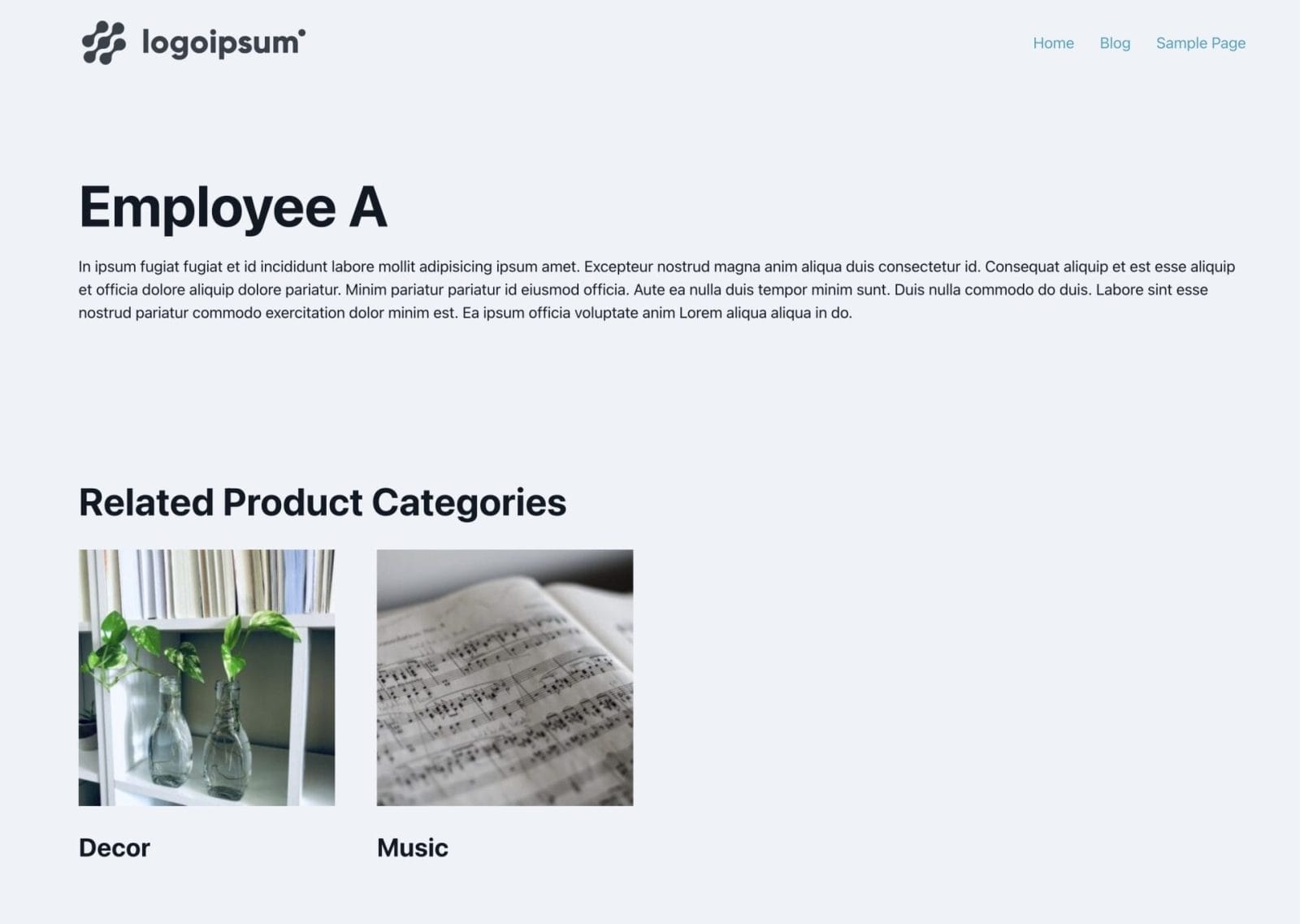
After implementing the tutorial, ‘Employee A’ post on the front end:

‘Employee B’ post on the front end:

‘Decor’ product category archive in the backend:

On the front end:

‘Music’ product category archive in the backend:

On the front end:

We shall also ensure that the Sections get output only if there is at least one related item (CPT post or taxonomy term).
Step 1
Install and activate ACF.
Create your CPT.
Ex.:

Create the other CPT and an associated taxonomy. In our dev site, we used product CPT and product_cat taxonomy that come with WooCommerce.
Step 2
Create a field group for your main CPT (team-member in this example).

Create a field group for the other CPT’s taxonomy.

Set the Return Value to Post ID.
Enable ‘Select Multiple’ if needed.
Step 3
Edit both the field groups again and enable bidirectional relationship.


Step 4
Add items for your CPT (team members) and taxonomy (product categories).
Edit either the CPT or the taxonomy and select related items of the other object.
Step 5
Create a single template for your main CPT and edit it with Bricks.


Add a Section to show the post title and post content.

Add another Section and inside its Container, add a heading that reads something like “Related Product Categories”.
Add a Container below the heading and a Block inside the Container.
Enable query loop on the Block. Select Terms as its Type.
If you have set an image custom field for this taxonomy, add an Image element and select the field as its source.
Add a heading set to:
{term_name}
Select the query loop-enabled Block, click the query icon and paste this in the PHP query editor:
return [
  'taxonomy' => 'product_cat', // set your taxonomy here
  'hide_empty' => false, // true is default
  'include' => get_field( 'team-member__product_category' ),
  'number' => 0,
];
Replace product_cat with your taxonomy identifier.
Replace team-member__product_category with your field name.
Select the parent Section and apply a dynamic data condition like this:

Select the Taxonomy-type field in the second input.
Visit any single post of this CPT on the front end and check.
Step 6
Create a Archive-type template for your taxonomy archive pages and edit it with Bricks.


Add a Section and inside its Container a Heading having:
{term_name}

You may want to add a Posts element or Product element or set up a query loop to show all posts assigned to the current term.
Add another Section and inside its Container a heading with text that reads something like “Related Employees”.
Add a Container below the heading and a Block inside the Container.
Enable query loop on the Block.
PHP query:
$tax = 'product_cat'; // enter your taxonomy here

$items = get_field( 'product_cat__team_member', $tax . '_' . get_queried_object_id() );

if ( $items ) {
  return [
    'post_type' => 'team-member', // set your CPT key here
    'posts_per_page' => 100, // a large number
    'no_found_rows' => true,
    'post__in' => $items,
    'orderby' => 'post__in',
  ];
} else {
  return [
    'post__in' => [ 0 ],
  ];
}
Replace product_cat with your taxonomy identifier.
Replace product_cat__team_member with your Post Object field name for this taxonomy.
Replace team-member with your CPT key.
Add a Basic Text element inside the Block having:
{post_title:link}
Add and configure any other post-specific elements as desired.
Apply a dynamic data condition on the parent Section like this:

Replace xiegty with the Bricks ID of query-loop enabled Block element.
Visit any term archive page of this taxonomy on the front end and check.
References
https://developer.wordpress.org/reference/functions/get_terms/
https://developer.wordpress.org/reference/classes/wp_term_query/__construct/#parameters
https://www.advancedcustomfields.com/resources/get_field/#get-a-value-from-different-objects