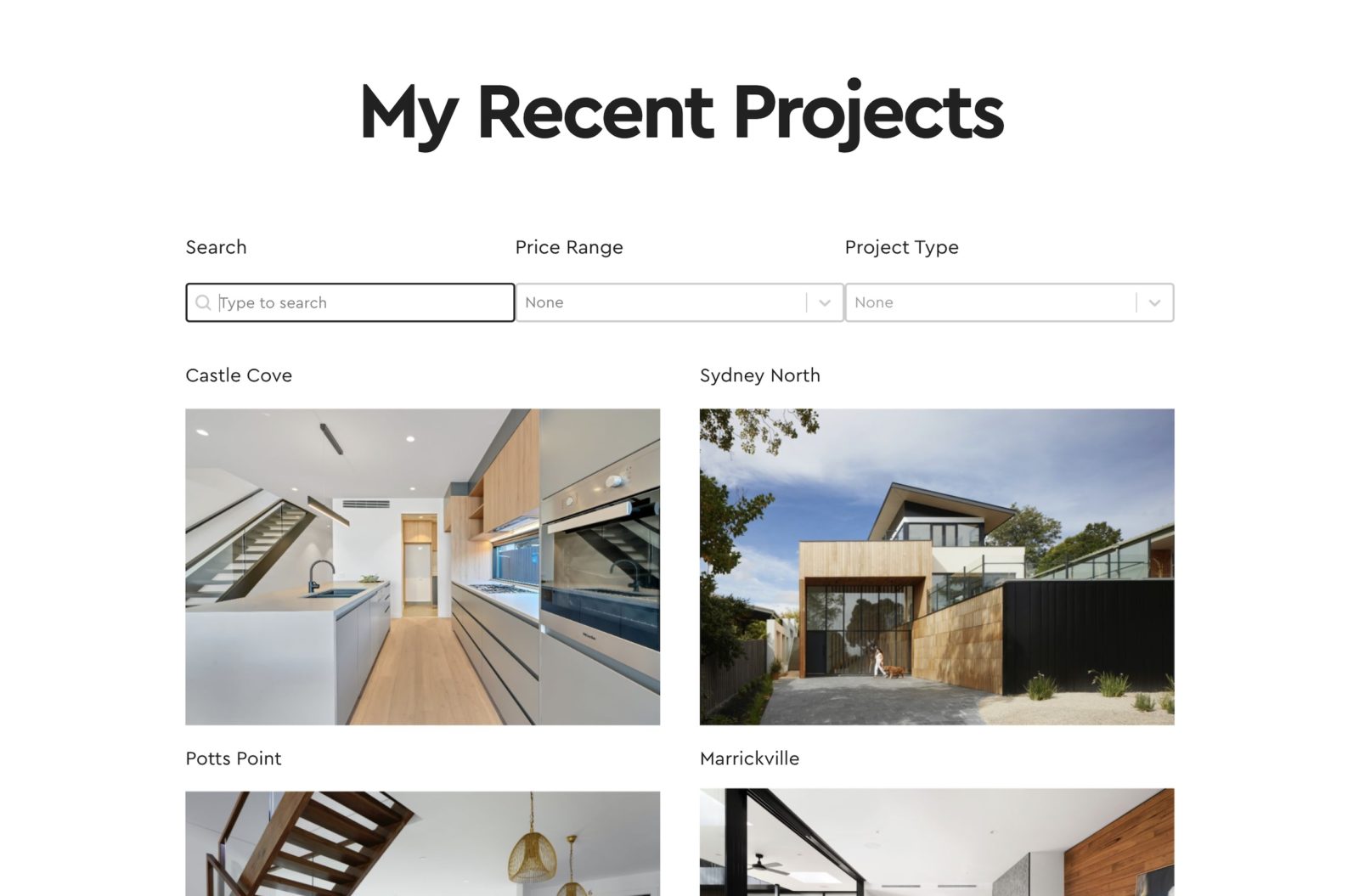
Update: This tutorial was written before WPGB had a Bricks add-on. Now, it is advisable to use that add-on instead. Get it from here.
Updated on 6 Jul 2022
In this tutorial, we’ll go through how we can get WPGridBuilder’s facets to work with Bricks’ query loop feature when using custom queries. For example, for adding different product filters, post search etc to posts that have been custom built with the container element.
WP Grid Builder is a popular WP plugin for adding real-time faceted searches & filters to posts and pages. The results load immediately on the page, so it’s great for filtering products or searching posts without disrupting the user flow by reloading the page.
Adding a container to wrap the post loop
With Bricks, when enabling the query loop feature on a container element, the container itself is repeated multiple times based on the query. These are the posts that will be changed by the facets.
We first need wrap these inside of a new container and give this post container a unique class. The requirement is that this class needs to start with wpgb-content.
For our post grid, let’s give it the class wpgb-content-post-grid-1.

Setting up the Facets
Inside WPGridBuilder’s setting page, once we have chosen the facets we wish to use, it will give us the shortcodes that we can insert on the page. We need to copy these, but change them slightly.

In Bricks, using the shortcode element, add in the shortcodes. For each shortcode change the grid parameter to match the class that we gave our new container. So in this case, the grid parameter would need to be wpgb-content-post-grid-1.
The shortcode will look something like this..
[wpgb_facet id="1" grid="wpgb-content-post-grid-1"]Note that the facet shortcodes won’t render inside of the builder.
Making sure WPGB picks up the custom query
By default, WPGridBuilder won’t automatically pick up the custom query and so the facets won’t do anything. What we need to do is add a new query argument to make sure it works. The argument is wp_grid_builder and we need to set it to match the class of our container, which again is wpgb-content-post-grid-1.
The easiest way, which can all be done all inside of Bricks, is to add a new shortcode just before our container, this time the wpgb_query shortcode, making sure we give it the ID that matches our container class.
[wpgb_query id="wpgb-content-post-grid-1"]
Enable Filter Custom Content
The last step is to go back into WPGridBuilder’s settings and enable the setting “Filter custom content”. This will ensure that WPGB knows to look out for the custom query and will correctly filter it.

That’s it
Now on the front end, the facets will appear where the shortcodes were placed and will filter the posts inside our container.


When filtering users
We need to use the bricks/users/query_vars filter in Bricks to add wp_grid_builder parameter to the users query.
Add this in child theme’s functions.php or using a code snippets plugin (on the front end):
add_filter( 'bricks/users/query_vars', function( $query_vars, $settings, $element_id ) {
	if ( 'mjkama' === $element_id ) {
		$query_vars['wp_grid_builder'] = 'wpgb-content-user-grid-1';
	}

	return $query_vars;
}, 10, 3 );
Replace mjkama with the Bricks element ID of the element on which Query Loop is applied.
Replace wpgb-content-user-grid-1 with the class added to the Query Loop element’s parent.
There is no need to add the wpgb_query shortcode.
When filtering terms
We need to use the bricks/terms/query_vars filter in Bricks to add wp_grid_builder parameter to the terms query.
Add this in child theme’s functions.php or using a code snippets plugin (on the front end):
add_filter( 'bricks/terms/query_vars', function( $query_vars, $settings, $element_id ) {
	if ( 'mjkama' === $element_id ) {
		$query_vars['wp_grid_builder'] = 'wpgb-content-term-grid-1';
	}

	return $query_vars;
}, 10, 3 );
Replace mjkama with the Bricks element ID of the element on which Query Loop is applied.
Replace wpgb-content-term-grid-1 with the class added to the Query Loop element’s parent.
There is no need to add the wpgb_query shortcode.
References
https://docs.wpgridbuilder.com/resources/guide-filter-custom-queries/