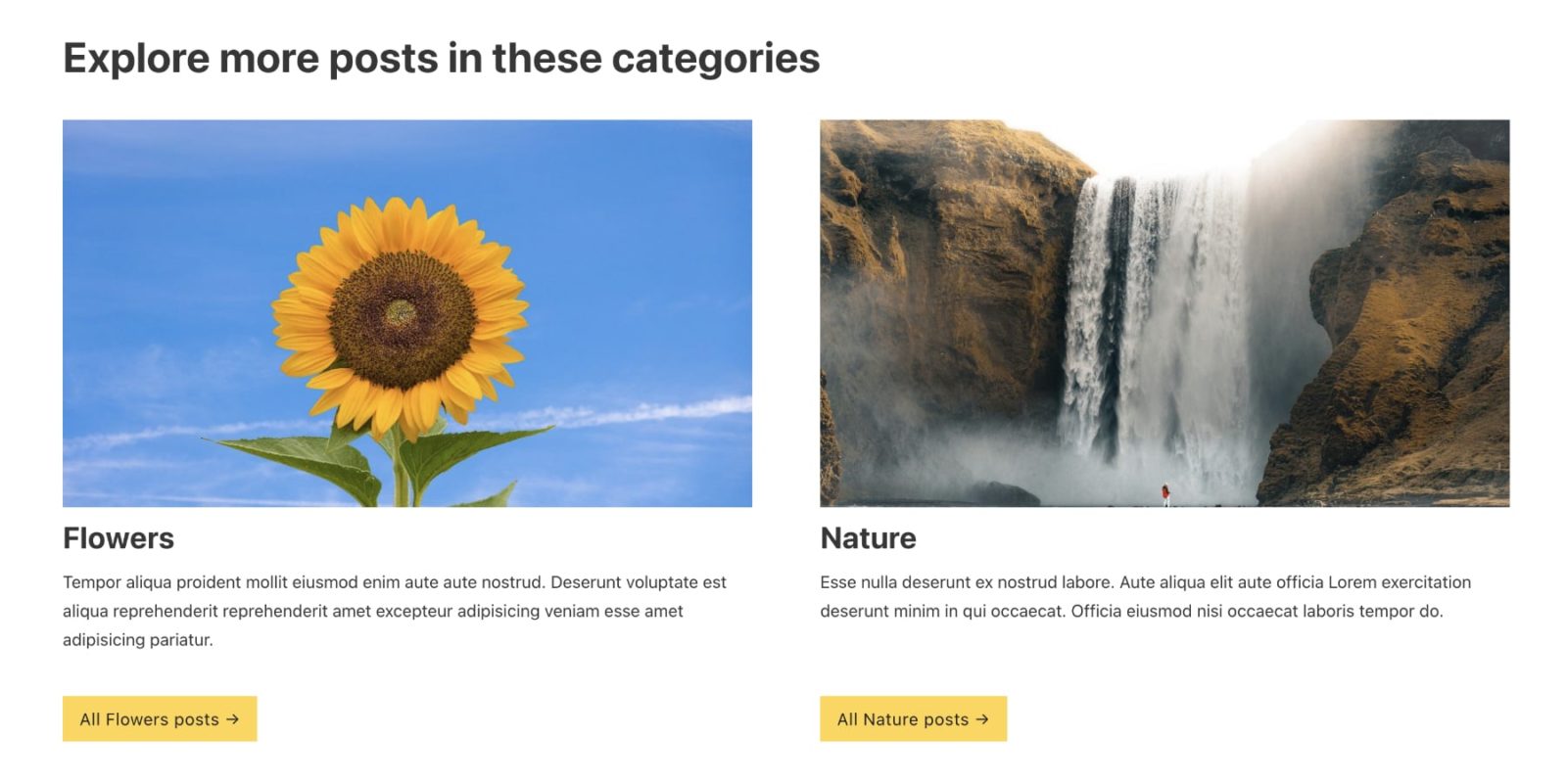
Updated on 15 Jan 2024
This Pro tutorial provides the steps to set up a grid of terms (like categories) that the current post is assigned to when viewing single posts using a Terms Query Loop in Bricks.

Step 1
Use your favorite custom fields plugin like ACF or Meta Box to create a image-type of custom field for your terms.


Ensure that the ID/name of your field is category_image since the JSON code you are going to paste in the next step references this.
Edit your categories and select/upload a Category Image for each.
Step 2
Edit the template that applies to singular posts of your post type with Bricks.
Copy the Section’s JSON from the link below and paste it in your template.

Select the Image element and ensure that the image size set for it is registered in your site.
In our test site we enabled additional image size in Bricks’ settings. Refer to Image Sizes in Bricks tutorial.
Note: If your layout appears broken, it might be because one or more of your images’ captions have links in them. Edit and remove them if so.
Step 3
Update on 15 Jan 2024
It is now possible to add query parameters directly inside the Bricks editor.
You have to select the query loop element, set the query type to Terms, select “Categories (Post)” as the Taxonomies, enable “Query editor (PHP)” and paste:
This file contains bidirectional Unicode text that may be interpreted or compiled differently than what appears below. To review, open the file in an editor that reveals hidden Unicode characters.
Learn more about bidirectional Unicode characters
| return [ | |
| ‘object_ids’ => {post_id}, | |
| ]; |
—-
We need to filter the terms to only those that are assigned to the current post.
Add this in child theme‘s functions.php or a code snippets plugin:
// Filter the terms to those assigned to the current post
add_filter( 'bricks/terms/query_vars', function( $query_vars, $settings, $element_id ) {
    if ( $element_id !== 'ehnqtt' ) {
        return $query_vars;
    }

    $query_vars['object_ids'] = get_the_ID();

    return $query_vars;
}, 10, 3 );
Replace ehnqtt with the Bricks ID of your repeating element. It will likely remain the same after pasting JSON from another page/site.