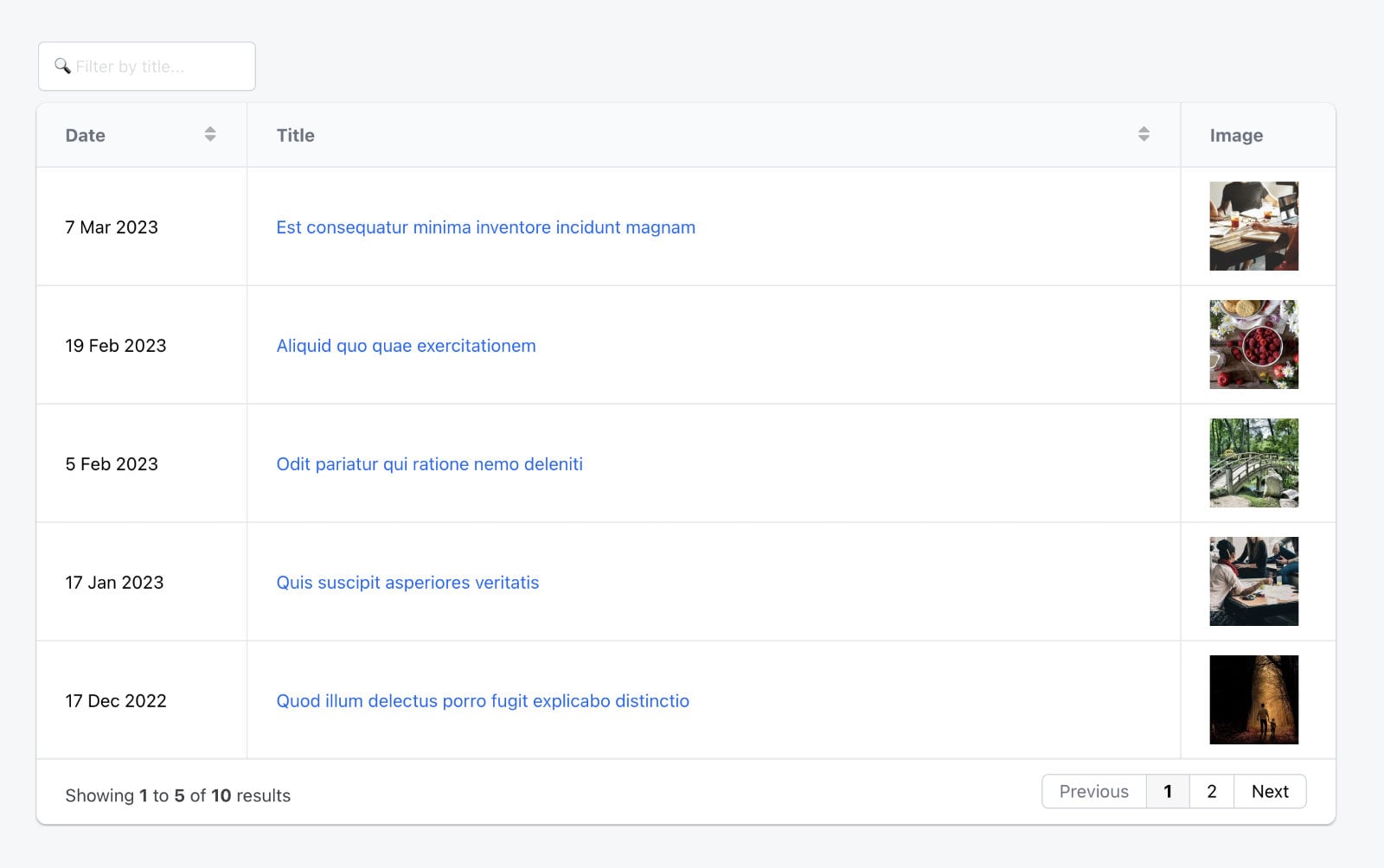
This Pro tutorial provides the steps to use Grid.js in a WordPress site powered by Bricks builder.
Grid.js is a lightweight and performant JavaScript library for showing tabular data with optional sorting, filter-as-you-type search and pagination.
We shall cover both static/hard-coded tables and dynamic (post grid) tables.
Note: If you don’t want to accomplish the same as what this tutorial shows without writing a single line of code, our BricksExtras plugin comes with this feature (apart from many others) in the form of a Dynamic Table element.
Static Tables

Step 1
Edit a Page with Bricks.
Add a Section and inside its Container, a Div.
STYLE → CSS → CSS ID: wrapper (or, something that is more specific of your choice) – remember to also use the same in the next step.
Step 2
Go to Settings (gear icon) → CUSTOM CODE → Header scripts:
Copy and paste:
<script src="https://cdn.jsdelivr.net/npm/gridjs/dist/gridjs.umd.js" defer></script>

<link href="https://cdn.jsdelivr.net/npm/gridjs/dist/theme/mermaid.min.css" rel="stylesheet" />
The defer attribute indicates to the browser that the script is meant to be executed after the document has been parsed, but before firing the DOMContentLoaded event.
Body (footer) scripts:
<script>
document.addEventListener('DOMContentLoaded', () => {
	new gridjs.Grid({
		columns: ['Name', 'Email', 'Phone Number'],
		data: [
			['John', 'john@example.com', '(353) 01 222 3333'],
			['Mark', 'mark@gmail.com', '(01) 22 888 4444'],
			['Eoin', 'eoin@gmail.com', '0097 22 654 00033'],
			['Sarah', 'sarahcdd@gmail.com', '+322 876 1233'],
			['Afshin', 'afshin@mail.com', '(353) 22 87 8356'],
		],
	}).render(document.getElementById('wrapper'));
});
</script>
Check the Page on the frontend and you should see Grid.js render the data in a table in in the Div having the specified ID.
Sorting and column width
Let’s say you want to have the table be sortable by individual column(s), the Name column in this example and set Phone Number column’s width to be 50%.
Replace
columns: ['Name', 'Email', 'Phone Number'],with
columns: [
  {
    name: 'Name',
    sort: true,
  },
  {
    name: 'Email',
  },
  {
    name: 'Phone Number',
    width: '50%',
  },
],
After clicking the Name column:

To add sorting for all columns replace
columns: ['Name', 'Email', 'Phone Number'],with
columns: ['Name', 'Email', 'Phone Number'],
sort: true,
Width can also be specified in pixels.
Ex.:
width: '200px',https://gridjs.io/docs/examples/sorting
Styling
The table should be responsive (horizontal scrolling) out of the box.
It is possible to specify CSS for the main container, table, th, td, header and footer.
Ex.:
Expand
<script>
document.addEventListener('DOMContentLoaded', () => {
	new gridjs.Grid({
		columns: [
			{
				name: 'Name',
				sort: true,
			},
			{
				name: 'Email',
			},
			{
				name: 'Phone Number',
				width: '50%',
			},
		],
		data: [
			['John', 'john@example.com', '(353) 01 222 3333'],
			['Mark', 'mark@gmail.com', '(01) 22 888 4444'],
			['Eoin', 'eoin@gmail.com', '0097 22 654 00033'],
			['Sarah', 'sarahcdd@gmail.com', '+322 876 1233'],
			['Afshin', 'afshin@mail.com', '(353) 22 87 8356'],
		],
		style: {
			table: {
				border: '3px solid #ccc',
			},
			th: {
				'background-color': 'rgba(0, 0, 0, 0.1)',
				color: '#000',
				'border-bottom': '3px solid #ccc',
				'text-align': 'center',
			},
			td: {
				'text-align': 'center',
			},
		},
	}).render(document.getElementById('wrapper'));
});
</script>
If you’d like to alternatively add custom classes:
<script>
document.addEventListener('DOMContentLoaded', () => {
	new gridjs.Grid({
		columns: [
			{
				name: 'Name',
				sort: true,
			},
			{
				name: 'Email',
			},
			{
				name: 'Phone Number',
				width: '50%',
			},
		],
		data: [
			['John', 'john@example.com', '(353) 01 222 3333'],
			['Mark', 'mark@gmail.com', '(01) 22 888 4444'],
			['Eoin', 'eoin@gmail.com', '0097 22 654 00033'],
			['Sarah', 'sarahcdd@gmail.com', '+322 876 1233'],
			['Afshin', 'afshin@mail.com', '(353) 22 87 8356'],
		],
		className: {
			td: 'my-td-class',
			table: 'custom-table-class',
		},
	}).render(document.getElementById('wrapper'));
});
</script>Pagination and Fixed header
Add
pagination: true,
fixedHeader: true,
height: '400px',
Ex.:
<script>
document.addEventListener('DOMContentLoaded', () => {
	new gridjs.Grid({
		columns: ['Name', 'Email', 'Phone Number'],
		sort: true,
		pagination: true,
		fixedHeader: true,
		height: '400px',
		data: [
			['John', 'john@example.com', '(353) 01 222 3333'],
			['Mark', 'mark@gmail.com', '(01) 22 888 4444'],
			['Eoin', 'eoin@gmail.com', '0097 22 654 00033'],
			['Sarah', 'sarahcdd@gmail.com', '+322 876 1233'],
			['Afshin', 'afshin@mail.com', '(353) 22 87 8356'],
		],
	}).render(document.getElementById('wrapper'));
});
</script>
To limit the number of rows per page:
<script>
document.addEventListener('DOMContentLoaded', () => {
	new gridjs.Grid({
		columns: ['Name', 'Email', 'Phone Number'],
		sort: true,
		pagination: {
			limit: 2,
		},
		data: [
			['John', 'john@example.com', '(353) 01 222 3333'],
			['Mark', 'mark@gmail.com', '(01) 22 888 4444'],
			['Eoin', 'eoin@gmail.com', '0097 22 654 00033'],
			['Sarah', 'sarahcdd@gmail.com', '+322 876 1233'],
			['Afshin', 'afshin@mail.com', '(353) 22 87 8356'],
		],
	}).render(document.getElementById('wrapper'));
});
</script>
Search
Add `search: true,`
Ex.:
<script>
document.addEventListener('DOMContentLoaded', () => {
	new gridjs.Grid({
		columns: ['Name', 'Email', 'Phone Number'],
		sort: true,
		search: true,
		data: [
			['John', 'john@example.com', '(353) 01 222 3333'],
			['Mark', 'mark@gmail.com', '(01) 22 888 4444'],
			['Eoin', 'eoin@gmail.com', '0097 22 654 00033'],
			['Sarah', 'sarahcdd@gmail.com', '+322 876 1233'],
			['Afshin', 'afshin@mail.com', '(353) 22 87 8356'],
		],
	}).render(document.getElementById('wrapper'));
});
</script>
Resizable columns
Add resizable: true,.
Ex.:
<script>
document.addEventListener('DOMContentLoaded', () => {
	new gridjs.Grid({
		columns: ['Name', 'Email', 'Phone Number'],
		sort: true,
		search: true,
		resizable: true,
		data: [
			['John', 'john@example.com', '(353) 01 222 3333'],
			['Mark', 'mark@gmail.com', '(01) 22 888 4444'],
			['Eoin', 'eoin@gmail.com', '0097 22 654 00033'],
			['Sarah', 'sarahcdd@gmail.com', '+322 876 1233'],
			['Afshin', 'afshin@mail.com', '(353) 22 87 8356'],
		],
	}).render(document.getElementById('wrapper'));
});
</script>Dynamic Tables
We shall load the CSS and JS from child theme’s functions.php.
If you’ve already added the same for your Page via the Bricks editor, remove them.
Step 1
Create a Page in which you’d like to have the dynamic posts grid and edit it with Bricks.
Add a Section and inside its Container, a Div.
STYLE → CSS → CSS ID: table-grid (or, something that is more specific of your choice) – remember to also use the same in the next step.
Settings (gear icon) → CUSTOM CODE → Custom CSS:
.gridjs-td a {
	color: #1c64f2;
}
Step 2
Create a directory called assets in your child theme’s directory using a (s)FTP client or your hosting panel file manager and inside that, js and css directories.
Upload mermaid.min.css to /assets/css.
Upload gridjs.umd.js to /assets/js.
Create a file named gridjs-init.js in /assets/js having:
'use strict';

document.addEventListener('DOMContentLoaded', () => {
	new gridjs.Grid({
		columns: [
			{
				name: 'Date',
				formatter: cell => {
					// format the date in a human readable format (j M y) from the timestamp
					const date = new Date(cell * 1000);
					return `${date.getDate()} ${date.toLocaleString('default', {
						month: 'short',
					})} ${date.getFullYear()}`;
				},
				sort: {
					compare: (a, b) => a - b,
				},
				width: '150px',
			},

			{
				name: 'Title',
				formatter: cell => gridjs.html(`${cell}`),
			},

			{
				name: 'Image',
				formatter: cell => gridjs.html(`${cell}`),
				sort: false,
				width: '110px',
			},
		],
		sort: true,
		search: true,
		language: {
			search: {
				placeholder: '???? Filter by title...',
			},
		},
		resizable: true,
		pagination: {
			limit: 5,
		},
		data: Object.values(BL_GRIDJSOBJECT),
	}).render(document.getElementById('table-grid'));
});
The above init file is set to use an array (for the data) that we shall send from functions.php next.
This array is going to have 10 objects that look like this:

Step 3
Add this in functions.php:
// Load Grid.js on a specific Page in the header with defer attribute.
add_action( 'wp_head', function () {
	if ( ! is_page( 'grid-js-dynamic' ) ) {
		return;
	}

	wp_print_script_tag(
		[
			'id' => 'gridjs',
			'src' => esc_url( get_stylesheet_directory_uri() . '/assets/js/gridjs.umd.js' ),
			'defer' => true
		]
	);
});

// Load Grid.js's CSS and the init file on a specific Page in the footer.
add_action( 'wp_enqueue_scripts', function() {
	if ( ! bricks_is_builder_main() && is_page( 'grid-js-dynamic' ) ) {
		wp_enqueue_style( 'gridjs', esc_url( get_stylesheet_directory_uri() . '/assets/css/mermaid.min.css' ), ['bricks-frontend'] );

		wp_enqueue_script(
			'gridjs-init',
			esc_url( get_stylesheet_directory_uri() . '/assets/js/gridjs-init.js' ),
			[],
			'1.0.0',
			true
		);

		$args = [
			'post_type' => 'post',
			'numberposts' => 10
		];

		$posts = get_posts( $args );

		$gridjs_array = [];

		foreach ( $posts as $post ) {
			$gridjs_array[] = [
				'date' => get_post_timestamp( $post ),

				'title' => sprintf( '<a href="%s">%s</a>', esc_url( get_permalink( $post->ID ) ), esc_html( $post->post_title ) ),

				'image' => sprintf( '<a href="%s"><img src="%s" alt="%s" width="75" /></a>', get_permalink( $post->ID ), esc_url( get_the_post_thumbnail_url( $post, 'thumbnail' ) ), esc_attr( $post->post_title ) ),
			];
		}

		wp_add_inline_script( 'gridjs-init', 'const BL_GRIDJSOBJECT = ' . json_encode( $gridjs_array ), 'before' );
	}
} );
Replace both instances of grid-js-dynamic with the slug of your Page on which you want the dynamic grid to be present.
We are getting 10 latest post objects ($posts), looping through them and filling an associative array ($gridjs_array) with the keys being date, title and image.
Then wp_add_inline_script() function is being used to pass the JSON encoded string of the array to the init file.
Check the frontend.
References
http://developer.wordpress.org/reference/functions/wp_add_inline_script/
https://developer.wordpress.org/reference/functions/get_post_timestamp/
https://askjavascript.com/how-to-convert-timestamp-to-date-in-javascript/