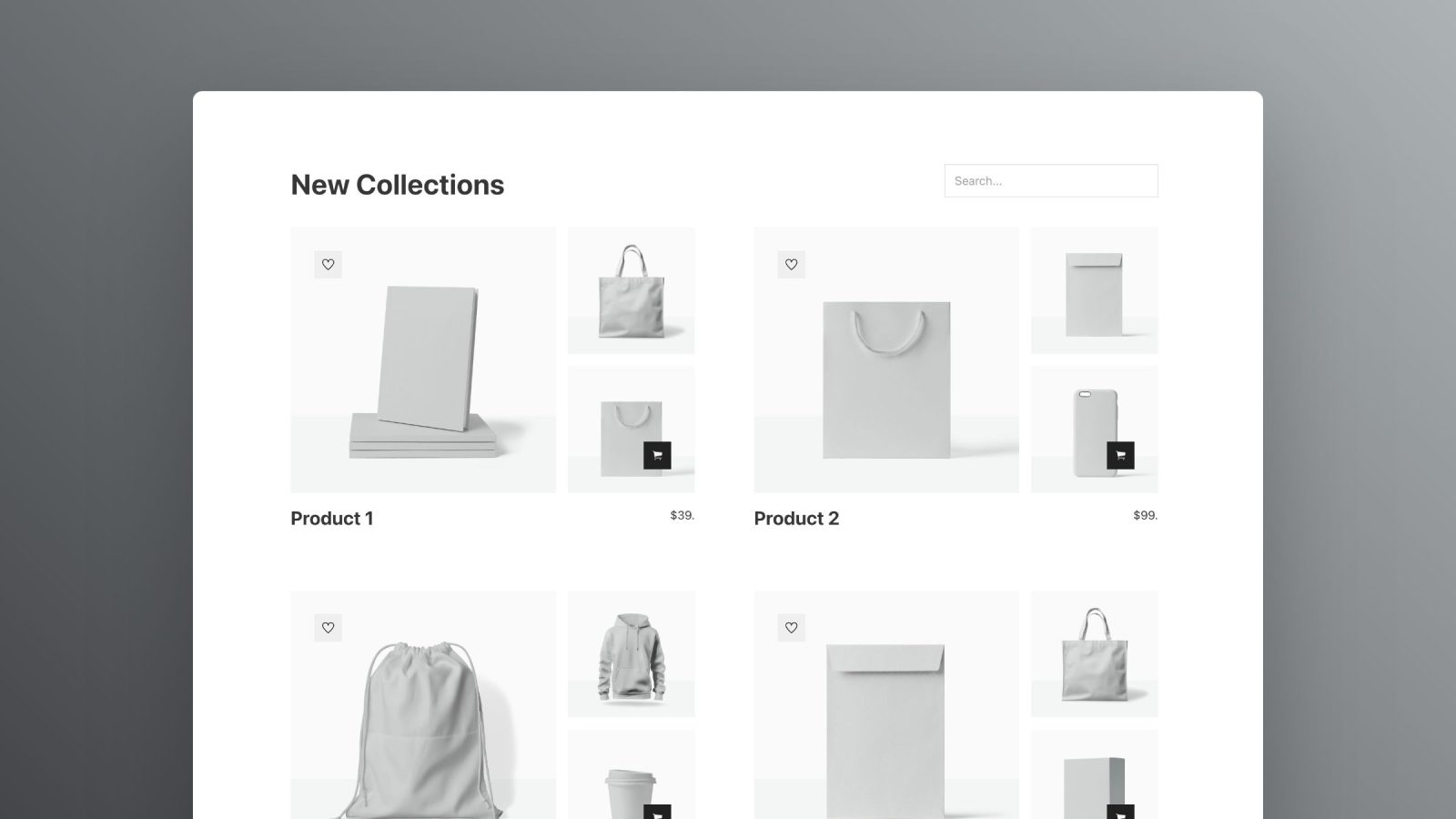
Out of the box, the main way to display SureCart‘s (v3+) product images in Bricks is with an element called ‘Product Media’. This outputs a pre-built slider with thumbnails for use on the product page. But it’s not very customizable and isn’t nestable, so we can’t use it for displaying the product images outside of that slider. For more flexibility, this Pro Tutorial goes through how to get all of the product’s images via Bricks’ query loop.
This will then allow us to create grid layouts, add to custom sliders, have the images link to lightboxes etc.. everything we can do easily in Bricks with image elements and query loops.
Migrate Images
First, make sure all images have been migrated and none are coming from SureCart’s server. This way all images are in our media library and we have control over the alt text, image sizes etc.

We’ll then create a custom query loop for the product’s images..
Product Images Query Loop
Let’s say we already have a product query loop, showing a grid of products. We want each product in the list to display some product images.
First, we’d add a block element inside of this Product query loop (outside of the product card element), and then add a new Product Images query loop to that block to get the images.
For the Product Images query loop, copy the following PHP into Bricks’ query editor..
/* Get current product */
$product = sc_get_product();

/* Get array of image objects from current product */
$images = $product->gallery;

/* Create an array for the attachment IDs to be used for the loop */
$ids = [];

foreach ( $images as $image ) {

  /* Check image has been saved as an attachment, if so add the attachment ID */
  if ($image instanceof SureCartModelsGalleryItemAttachment) {
        $ids[] = $image->ID;
  }
}

/* If we have some IDs, set WP_Query args to only those attachments */
if ( is_array( $ids ) && ! empty( $ids ) ) {
	return [
		'post_type' => 'attachment',
		'post_status' => 'inherit',
		'posts_per_page' => 100, /* limit no. of images here */
		'no_found_rows' => true,
		'post__in' => $ids,
		'orderby' => 'post__in',
	];
} else {
	return [
		'post__in' => [ 0 ],
	];
}
This will create the loop, getting all the images for each product.
Adding an image element
We can then use Bricks’ image element inside of our new query loop to output the images.
Set the image source to..
{post_id}
(For getting other image data inside of a query loop we may wish to use – title, alt text, caption, description, etc refer to the Media File Attachment Data in Bricks tutorial, it will work the same as if we were just using a ‘Media’ query loop).
Example use
We could be displaying a specific product collection (refer to a previous tutorial on how to output Product Collections Using Query Loops) and want to display some product images in a small grid to show a gallery for each product in the loop.

For the above, we’d have a structure consisting of our new Product Images query loop nested inside of a Product query loop.

Create the layout you want for the query loop using Bricks’ flex/grid controls (or maybe as a slider if the query loop is added to a slide).
To limit the number of images you want to display for each product, change the ‘posts_per_page’ value in the above query code.