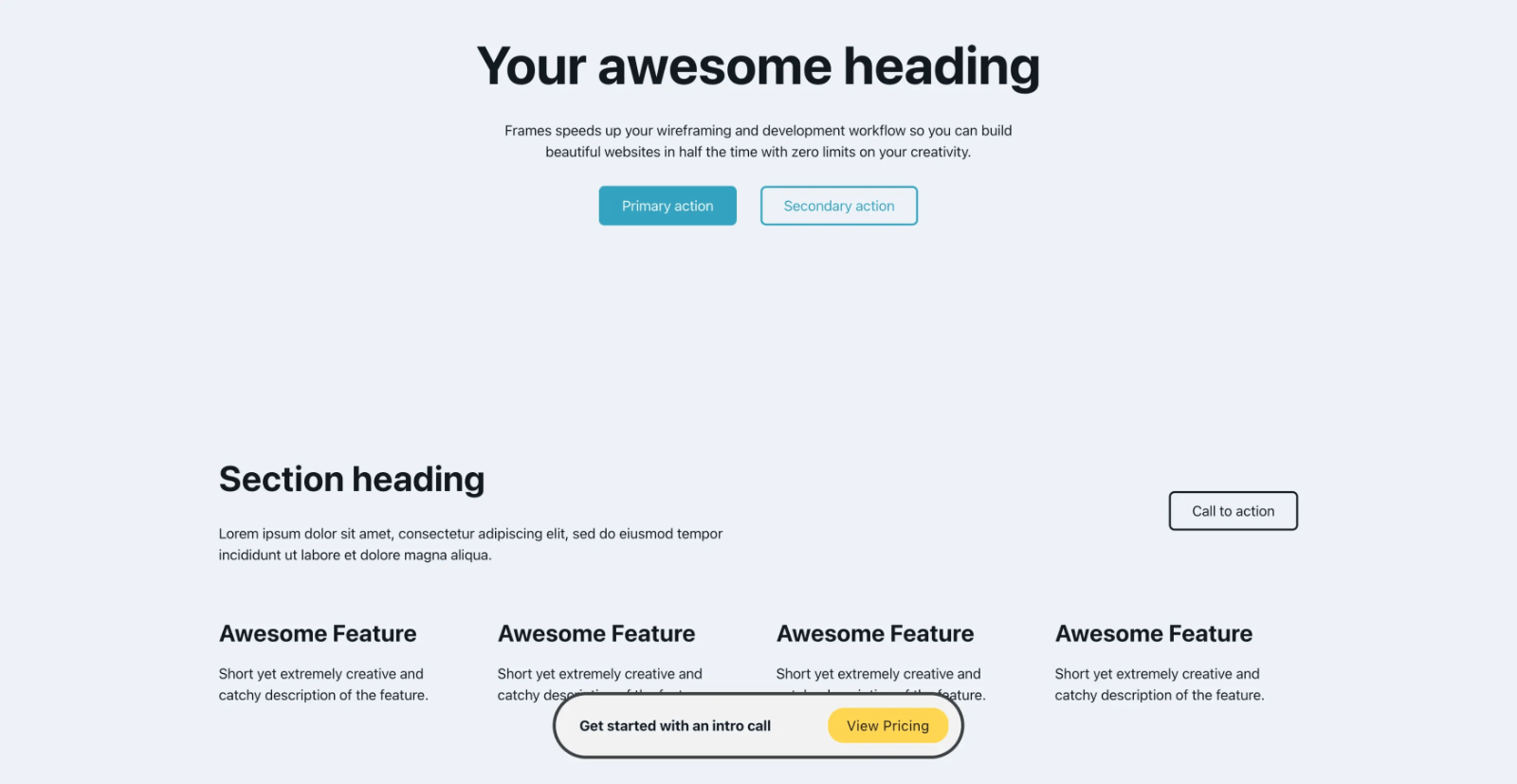
In the BricksLabs Facebook group, a user asked:
Any tutorial on how to implement the floating call to action element at the bottom this site? https://www.heyfriends.studio/
Initially thinking of headroomJS but open to suggestions.
I also have motion.page so if anyone has implemented something like this using that plugin, I’d appreciate your feedback.
This Pro tutorial provides the steps for setting up a bottom floater, which is initially off the screen on page load. When scrolling down, it slides up into view and remains; when scrolling up, it disappears (slides off the screen) and re-appears when scrolling down.
Step 1
Edit with Bricks the relevant Page/Template depending on where you want the floater to appear.
For sitewide, you could edit the Footer template.
Copy this JSON and paste it as the last element in your structure.

Edit your CTA Text, button text and specify a URL.
Step 2
Click the gear/cog icon to open Settings and then PAGE SETTINGS.
Custom CSS:
.bricks-is-frontend .floater-wrapper {
  transform: translateY(130px); /* Start off the screen */
  transition: transform 0.75s ease-in-out; /* Smooth transition for sliding effect */
}

.bricks-is-frontend.show-floater .floater-wrapper {
  transform: translateY(0);
}
Body (footer) scripts:
<script>

let lastScrollTop = 0; // Keep track of the last scroll position

window.addEventListener('scroll', function() {
    let currentScroll = window.pageYOffset || document.documentElement.scrollTop;
    const body = document.querySelector('body');
    const floaterWrapper = document.querySelector('.floater-wrapper');

    if (currentScroll > lastScrollTop) {
        // Scrolling down
        if (currentScroll > 100) {
            // Slide up after scrolling down 100px
            body.classList.add('show-floater');
        }
    } else {
        // Scrolling up
        // Slide off the screen
        body.classList.remove('show-floater');
    }

    lastScrollTop = currentScroll <= 0 ? 0 : currentScroll; // For Mobile or negative scrolling
}, false);

</script>
This setup will create a div initially positioned at the bottom of the page with a vertical translation of 100px, effectively hiding it off-screen. Once you scroll down more than 100 pixels, the div will slide up and become visible at the bottom of the screen. When you scroll back up, it will slide off the screen again. The transition property in the CSS ensures that this change in position is smooth.
If the user scrolls down more than 100 pixels, it adds the show-floater class to the body element, triggering the animation to slide up the floater. When scrolling back up, it removes the show-floater class, causing the floater to slide off the screen.
Explanation of: let currentScroll = window.pageYOffset || document.documentElement.scrollTop
This line of code retrieves the current scroll position of the webpage. It first checks if the window.pageYOffset property is defined and not null. If it is defined and has a non-null value, currentScroll will be set to window.pageYOffset, which represents the number of pixels the document has already been scrolled vertically.
If window.pageYOffset is not defined or is null (which can happen in some older browsers), the code falls back to document.documentElement.scrollTop. This property provides the number of pixels that the content of the document has been scrolled vertically from the top of the viewport.
By using this line of code, currentScroll will always contain the current vertical scroll position of the webpage, regardless of the browser being used. This information is crucial for determining when to trigger actions based on scrolling behavior, such as animating elements on the page.