In the previous ACF Flexible Content in Bricks tutorial we showed how Bricks‘ Flexible Content type of query can be used for showing the ACF Flexible Content field rows inside a Container.
A user asked in the comments:
Thanks for the great tutorial. How can we use flexible content where each row layout still gets its own section? For good semantic html, but also because I want to make the sections (each row layout) full width, so they get their own background color.
This Pro tutorial shows how this can be done by setting up separate section templates for each Flexible Content layout and programmatically applying these templates depending on the type of populated rows for posts so each row is in its full-width Section.
First, some screenshots.
Field group for Pages:

Flexible Content field being populated for “Sample Page”:

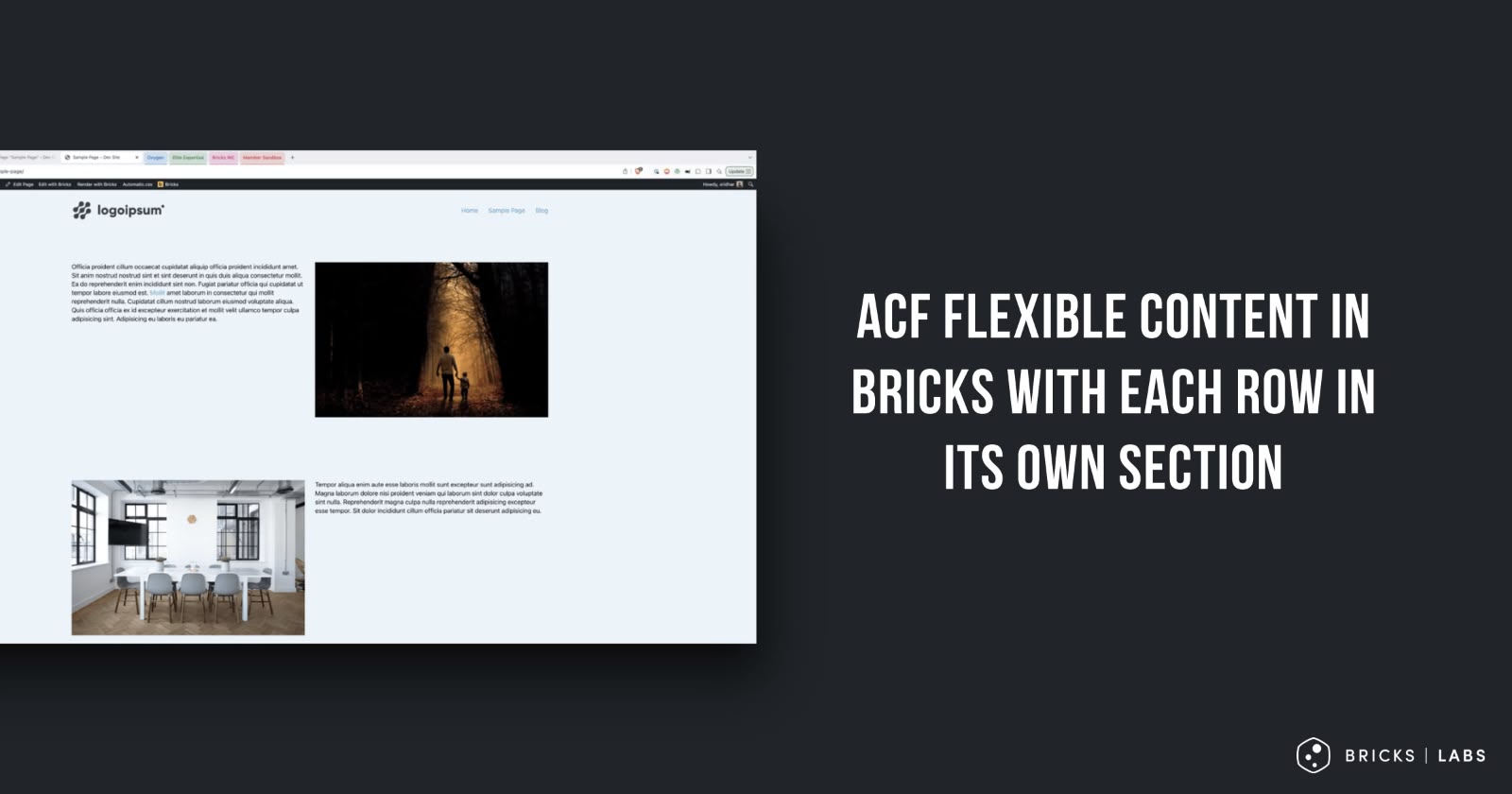
Output on the front end after implementing the tutorial:

Generated HTML:

Step 1
Follow Steps 1 and 2 of https://brickslabs.com/acf-flexible-content-in-bricks/.
Step 2
Add the following in child theme‘s functions.php (w/o the opening PHP tag) or a code snippets plugin:
<?php

/**
 * Get the value of a sub field within a specific ACF Flexible Content layout.
 *
 * @param string $field_name The name of the sub field to retrieve.
 * @return string|int|null The value of the sub field, or null if not found.
 */
function bl_get_flexible_sub_field_value( string $field_name ): string|int|null {
    $layout = get_row_layout();
    $value  = null;

    switch ( $layout ) {
        case 'image_text':
        case 'text_image':
            if ( 'text' === $field_name ) {
                $value = wp_kses_post( get_sub_field( 'text' ) );
            } elseif ( 'image' === $field_name ) {
                $image = get_sub_field( 'image' );
                $value = $image['ID'] ?? null;
            }
            break;
    }

    return $value;
}
Whitelist the bl_get_flexible_sub_field_value function.
Ex.:
<?php

add_filter( 'bricks/code/echo_function_names', function() {
  return [
    'bl_get_flexible_sub_field_value'
  ];
} );
You should also add other functions (native or custom) being used in your Bricks instance besides bl_get_flexible_sub_field_value. This can be checked at Bricks → Settings → Custom code by clicking the Code review button.

More info on whitelisting can be found here.
We defined a custom function that takes the name of a sub field (in this case – either text or image) as an input and returns the sanitized text if the supplied sub field is text and the ID of the image if it’s image.
You would need to modify this function depending on the type of sub fields in your FC field’s layouts. If you need any help with this, please leave a comment.
Step 3
Create a Bricks template of the type Section.
Give it a name of say, “ACF FC: Image – Text”.
Edit it with Bricks.
Paste the Section from our dev site using this JSON.

The Image source has been set to:
{echo:bl_get_flexible_sub_field_value(image)}
The Rich Text element’s text has been set to:
{echo:bl_get_flexible_sub_field_value(text)}
Repeat the process for the other type of layout.
Bricks Section template name: “ACF FC: Text – Image”.

Step 4
In the child theme directory create a file named page_acf-fc.php having:
<?php
/**
* Template Name: ACF FC
*/

get_header();

echo '<main id="brx-content">';

// Check value exists.
if ( have_rows( 'page_content' ) ) :
    // Loop through rows.
    while ( have_rows( 'page_content' ) ) : the_row();
        if ( get_row_layout() === 'image_text' ) :
            echo do_shortcode( '[bricks_template id="253"]' );
        elseif ( get_row_layout() === 'text_image') :
            echo do_shortcode( '[bricks_template id="258"]' );
        endif;
    // End loop.
    endwhile;
    // No value.
endif;

echo '</main>';

get_footer();
Replace 253 and 258 with the IDs of your Image Text and Text Image section templates.
Step 5
Edit your Page in the WP editor and set the “ACF FC” template.

That’s it! Check the Page on the front end.
Reference
https://brickslabs.com/mapping-bricks-template-to-wordpress-templates/