In the BricksLabs Facebook group a user asked:
[Filters and conditional visibility]
Hi all, is there any way to show or hide a filter (range) based on the selection made on another filter (dropdown)?
I have this page with a query of several dozen locations, each with a custom fields to identify four characteristics:
– mode of transportation (car, motorcycle, bicycle)
– time spent by car
– time spent by motorcycle
– time spent by bike
the filters available to the user will be these four. The first is a dropdown or radio (still a filter where a single item can be selected), the other 3 are ranges.
The problem is that some locations are reachable by both car and bike and therefore have time values for both. At the moment, whatever choice of mode of transportation the user makes still has the option of changing all 3 ranges. So if he chooses to travel by car but accidentally sets 1 hr as the maximum time duration by bike, the query is also filtered based on the time by bike and many locations disappear.
Is there any way to set the visibility conditions so that based on the choice made in the first filter (dropdown or radio) the corresponding filters (ranges) are shown?
Thank you all, I am wasting a lot of hours on this, but I have a feeling it is something simple to do
I have already asked in the bricks community group but none answer
This Pro tutorial provides the steps to conditionally hide other filters based on the option user selects in a Bricks filter select.
Consider this ACF field group:
Mode of transportation – Select type with these choices: Car, Motorcycle, Bicycle
Time spent by car – Range type
Time spent by motorcycle – Range type
Time spent by bicycle – Range type

Each Range field has been set up to show up in the post editor only if the corresponding mode of transportation has been selected.
Ex.:

In Bricks editor we set up a posts query loop and added filters to filter the posts by the corresponding custom field values.

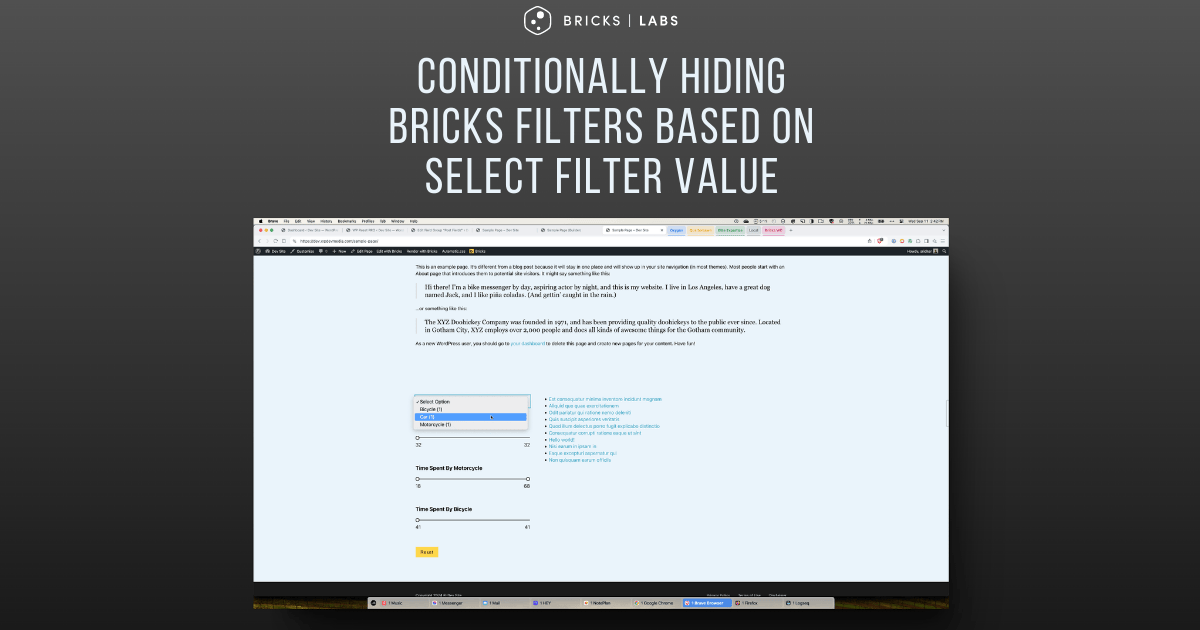
On the front end if the selected option for mode of transport is say, Car then in addition to the posts being filtered (which Bricks take care of), we want to also hide non-Car range filters, like this:

By default, it’s going to be like this:

After implementing the tutorial:
Note: As of Bricks 1.10.3, a select custom field with multiple values is not supported.
Single Tutorial Purchase Option
Lifetime access to this single tutorial can be purchased for $39 here.
Step 1
If you haven’t already set up the filters in Bricks editor, copy the fully-built Section from the JSON link below and paste.

For the “Filter – Select” element, ensure that Target query points to the query loop enabled Block. Source has been set to Custom field Meta key has been set to mode_of_transportation.
A CSS ID of filter-mode has been set for this element.
For each Range filter element, corresponding Meta keys have been set as the Custom field source.
Also, the CSS IDs have been set to #filter-car, #filter-motorcycle and #filter-bicycle for referencing them in code.
Step 2
Every time an option is selected from a Bricks select filter, the DOM gets replaced via AJAX.
The value of the selected option can be retrieved using
bricksData.filterInstances[filterSelectId].currentValuein JavaScript.
Based on this, let’s add JS to hide the non-related filters upon changing the select filter option.
Click on Settings (gear icon) → PAGE SETTINGS → CUSTOM CODE.
In Body (footer) scripts, paste
<script>
(function() {
	// Main function to initialize the filter
	function bl_init_filter() {
		// Bricks filter ID - replace 'nuoltd' with your actual filter ID
		const filterSelectId = 'nuoltd';

		// Variable to store the current filter value
		let currentFilter = '';

		// Function to update the filter based on the selected value
		// Ex.: bricksData.filterInstances['nuoltd'].currentValue = "mode_of_transportation|Car|="
		function bl_update_filter() {
			// Check if Bricks data and filter instance exist
			if (bricksData && bricksData.filterInstances && bricksData.filterInstances[filterSelectId]) {
				// Get the current filter value from Bricks
				const filterValue = bricksData.filterInstances[filterSelectId].currentValue;
				// Ex.: "mode_of_transportation|Car|="

				// Extract the vehicle type from the filter value, or set to empty string if no value
				if (filterValue) {
					// Extract the vehicle type from the filter value
					// Expected format: "mode_of_transportation|VehicleType|="
					const parts = filterValue.split('|');
					if (parts.length >= 2) {
						currentFilter = parts[1].toLowerCase();
					} else {
						console.warn('Unexpected filter value format:', filterValue);
						currentFilter = '';
					}
				} else {
					currentFilter = '';
				}
				// Ex.: "car"

				// Call function to hide/show items based on the current filter
				bl_hide_unselected_items();
			}
		}
		// Function to hide unselected items and show the selected one
		function bl_hide_unselected_items() {
			// Object containing references to filter item elements
			const filterItems = {
				car: document.getElementById('filter-car'),
				motorcycle: document.getElementById('filter-motorcycle'),
				bicycle: document.getElementById('filter-bicycle')
			};
			// Loop through each filter item
			Object.keys(filterItems).forEach(key => {
				// Check if the element exists in the DOM
				if (filterItems[key]) {
					// Show the item if no filter is set or if it matches the current filter
					if (!currentFilter || key === currentFilter) {
						filterItems[key].style.display = 'flex';
					} else {
						// Hide the item if it doesn't match the current filter
						filterItems[key].style.display = 'none';
					}
				}
			});
		}

		// Listen for Bricks AJAX event when query results are displayed
		document.addEventListener('bricks/ajax/query_result/displayed', () => {
			// Update the filter when new results are displayed
			bl_update_filter();
		});

		// Initialize the filter with the default selected value
		bl_update_filter();
	}
	// Check if the DOM is already loaded
	if (document.readyState === 'loading') {
		// If not, add an event listener to run bl_init_filter when DOM is fully loaded
		document.addEventListener('DOMContentLoaded', bl_init_filter);
	} else {
		// If DOM is already loaded, run bl_init_filter immediately
		bl_init_filter();
	}
})();
</script>
Replace nuoltd with the Bricks ID of the select filter.
This can be obtained by inspecting in on the front end.

Save and test on the front end.
Here’s a summary of the JavaScript code:
- The code is wrapped in an Immediately Invoked Function Expression (IIFE) for encapsulation.
- Main function bl_init_filter():
• Defines a constant filterSelectId for the Bricks filter ID.
• Declares a variable currentFilter to store the current filter value. - bl_update_filter() function:
• Checks for the existence of Bricks data and filter instance.
• Extracts the vehicle type from the filter value (e.g., “Car” from “mode_of_transportation|Car|=”).
• Handles potential errors in the filter value format.
• Calls bl_hide_unselected_items() to update the display. - bl_hide_unselected_items() function:
• Defines an object filterItems with references to filter item elements.
• Loops through each filter item and shows/hides based on the current filter.
• Uses ‘flex’ display for shown items and ‘none’ for hidden items. - Event listener for ‘bricks/ajax/query_result/displayed’:
• Calls bl_update_filter() when new query results are displayed. - Initialization:
• Calls bl_update_filter() immediately to set up initial state. - DOM ready check:
• If DOM is still loading, adds event listener for ‘DOMContentLoaded’.
• If DOM is already loaded, calls bl_init_filter() immediately. - The code is designed to work with Bricks’ filtering system, updating the display of vehicle-specific elements based on the selected filter option.
Credit
AI and Jenn Lee from the Bricks team.